
Chapter 11
Sales invoice
Create a sales invoice: pick the customer (or leave it a cash sale), add items by search or barcode, approve and print, then collect the amount.
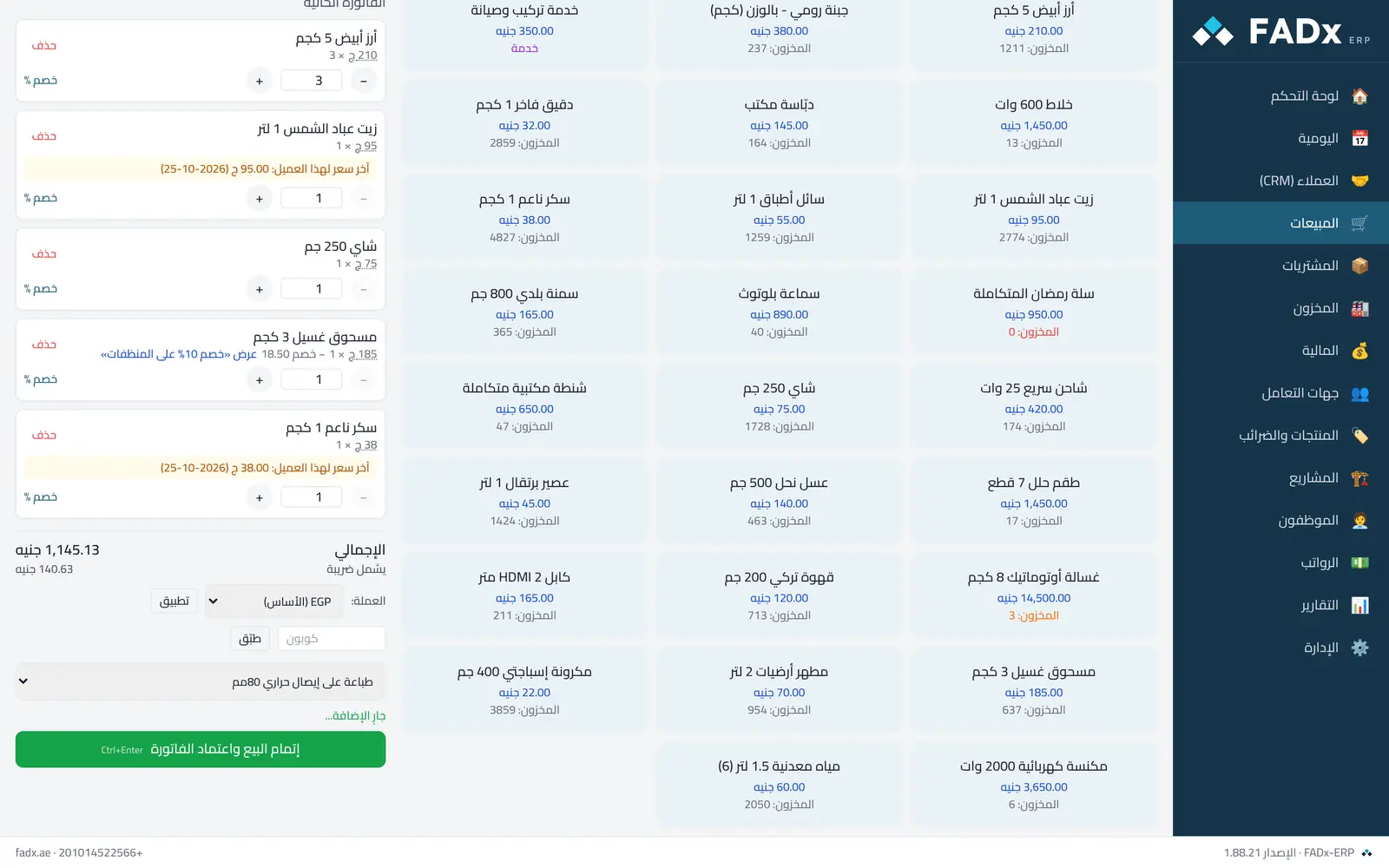
Promotions apply to the invoice automatically, and the promotion name appears on the item line in front of the customer.
Common workflows
- 1
A quick cash invoice
Scan the barcode or search for the item, adjust the quantity, then "Approve" and choose the till to collect into.
- 2
A credit invoice for a customer
Pick the customer first — their balance and credit limit appear in a bar — then add the items and approve.
- 3
Selling by carton
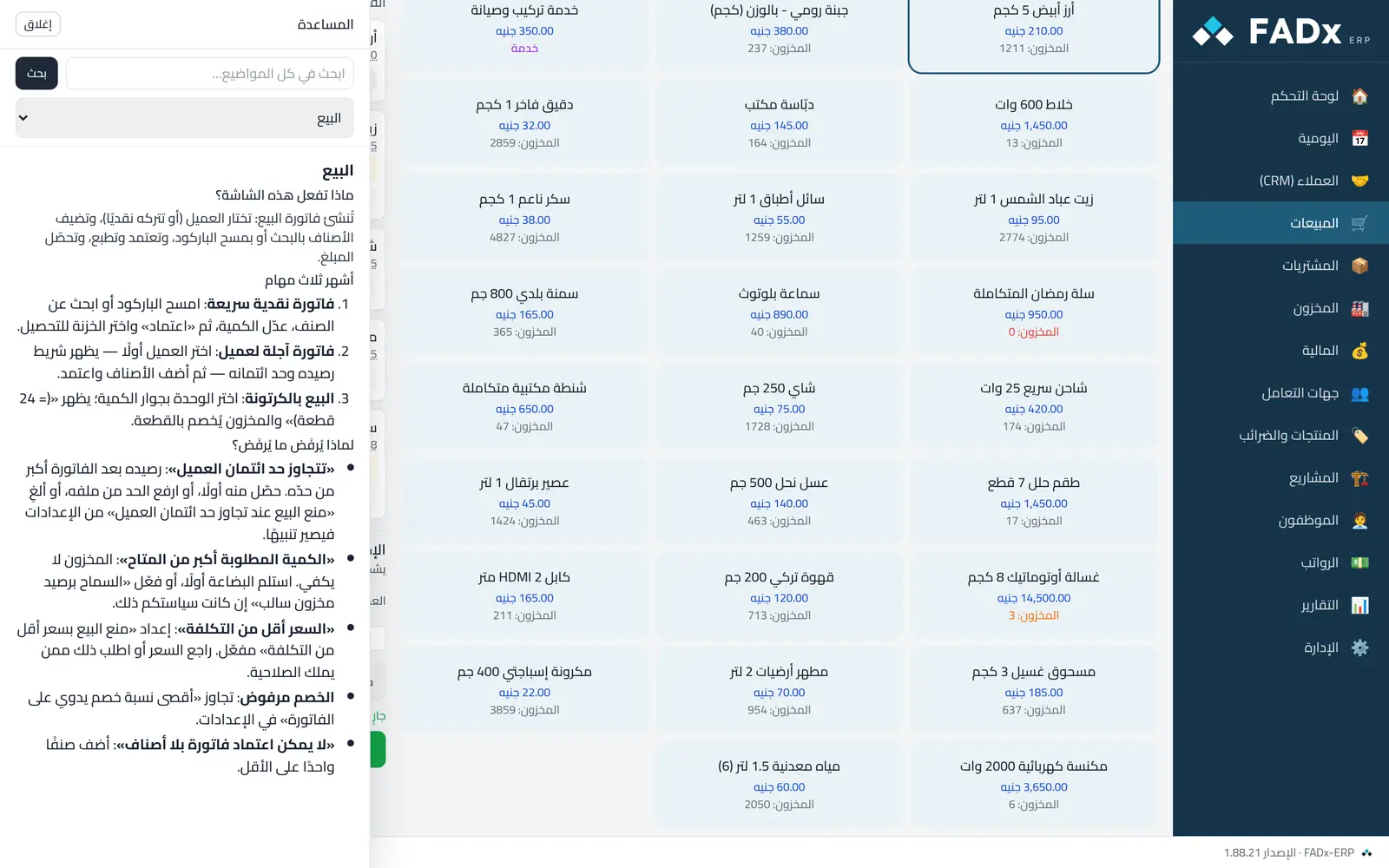
Pick the unit next to the quantity; it shows "= 24 pieces" and stock deducts by the piece.
Messages you may see — and what to do
- "Customer credit limit exceeded"
Their balance after this invoice exceeds the limit. Collect from them first, raise the limit in their file, or turn off "block sales over the credit limit" in settings so it becomes a warning only.
- "Quantity requested exceeds available"
Stock is insufficient. Receive the goods first, or enable "allow negative stock" if that is your policy.
- "Price is below cost"
The "block selling below cost" setting is on. Review the price or ask someone with the permission.
- Discount rejected
It exceeds the "maximum manual invoice discount" set in settings.
- "Cannot approve an invoice with no items"
Add at least one item.
Question not covered here? Message us on WhatsApp and we will answer.
Ask on WhatsApp