
Chapter 39
Reports
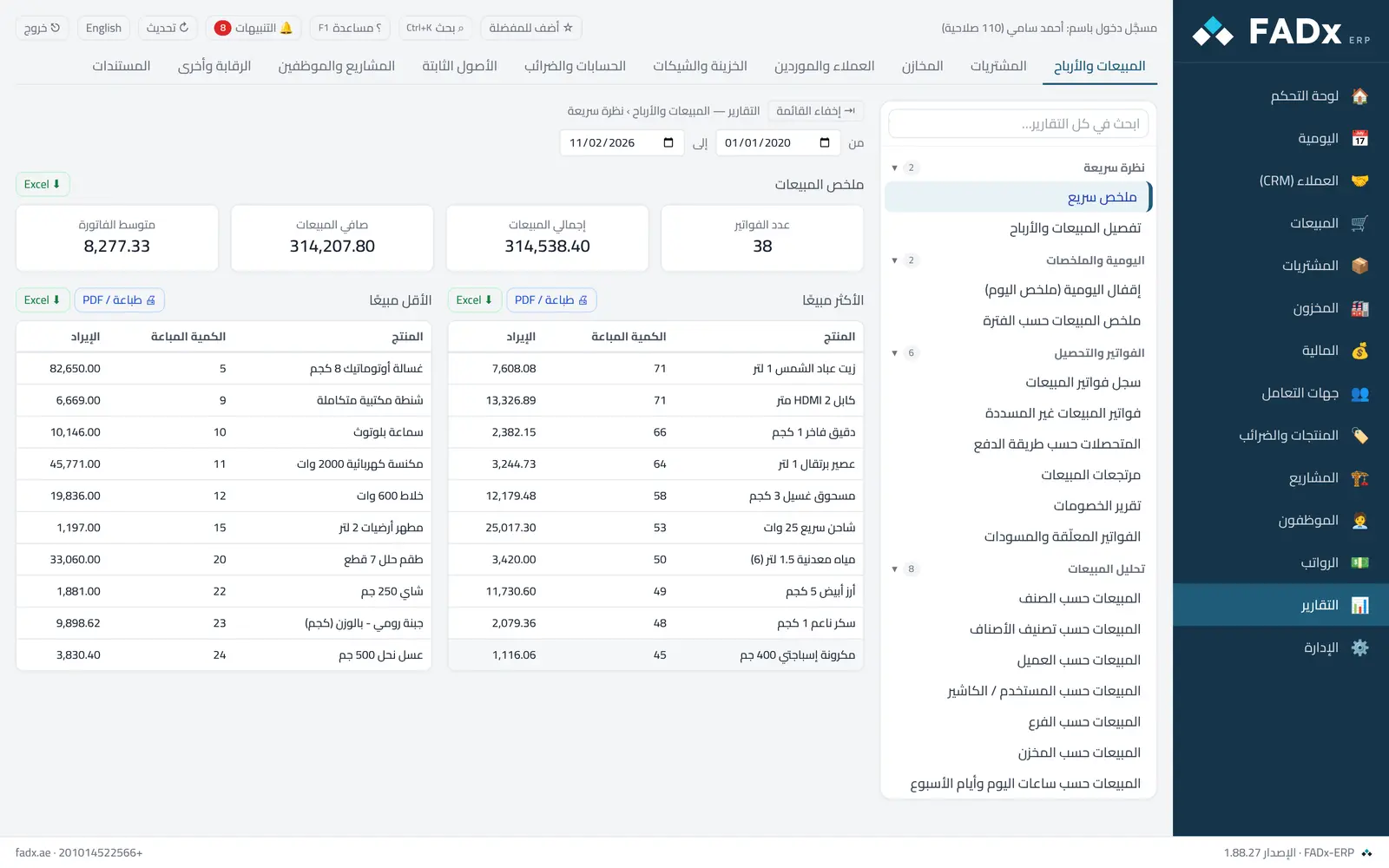
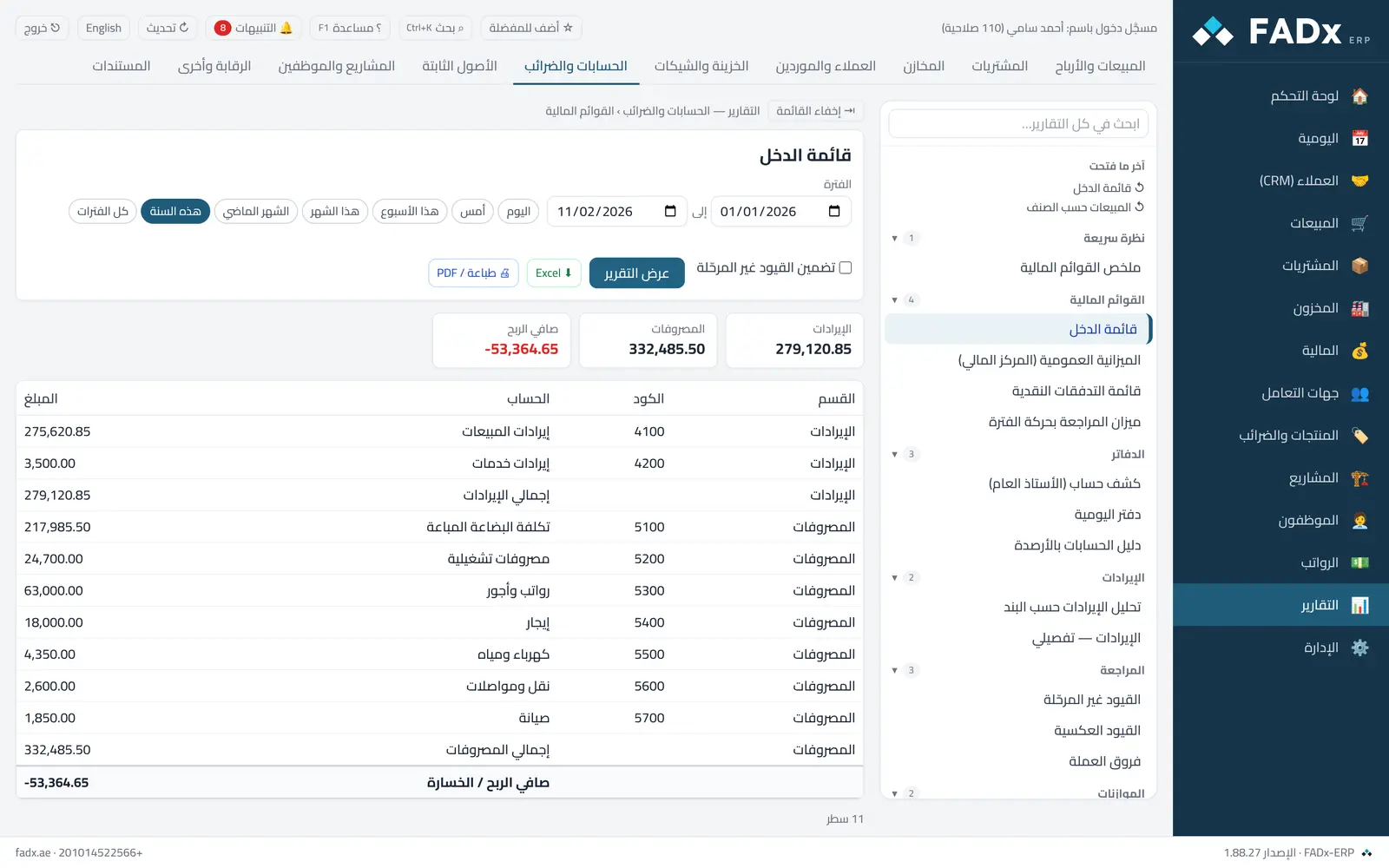
Reports are grouped by area: sales, purchasing, inventory, customers and suppliers, treasury, accounts, fixed assets, projects and audit. Inside each section, groups follow the order of work in a side list — summaries first, then registers, analysis and follow-up. Each report has its own filters and prints or exports to Excel.
Common workflows
- 1
Find a report
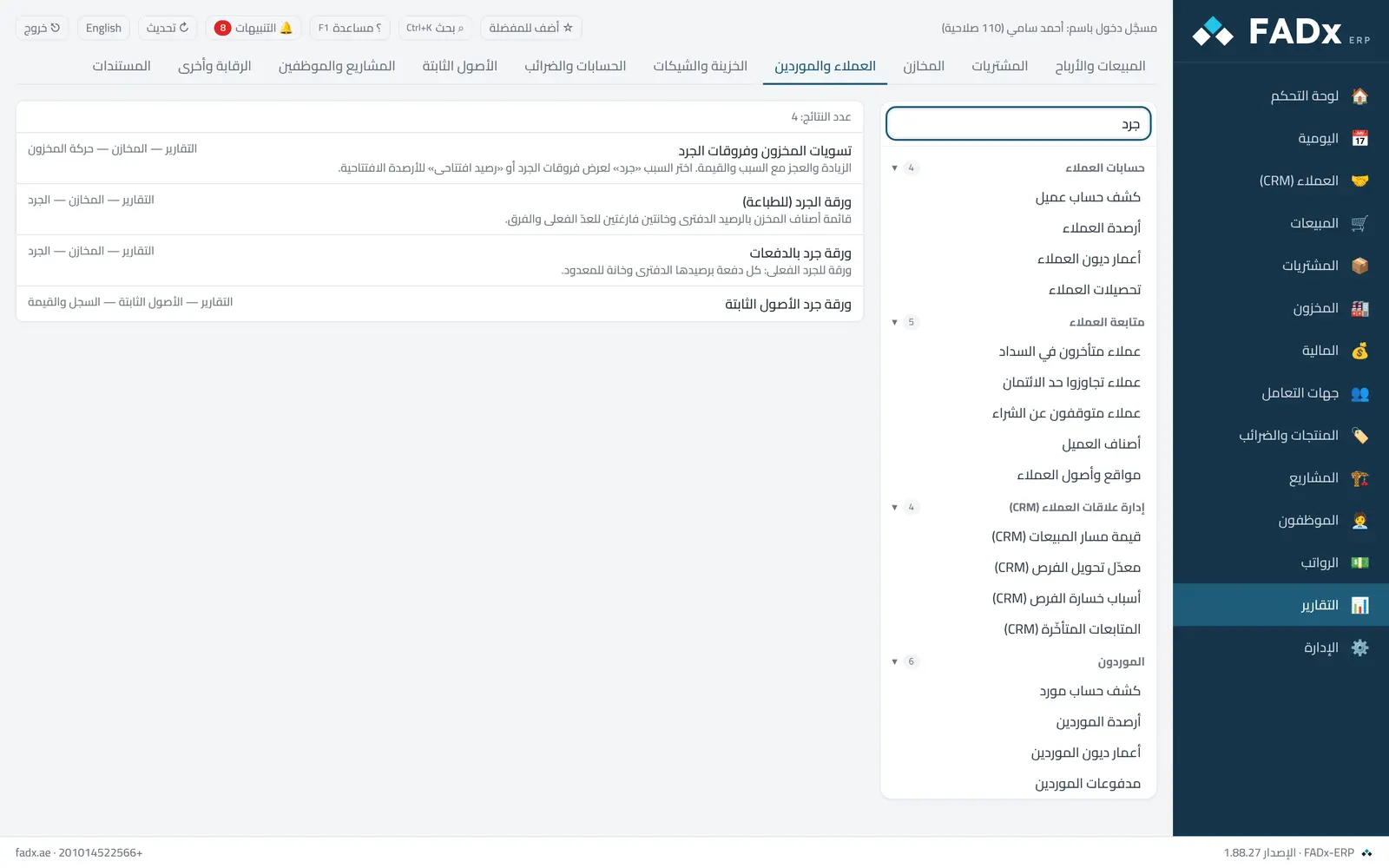
From the side list: the group, then the report (hovering shows its description). Or "Search all reports" — it matches titles and descriptions ("ageing" or "count", say) — or Ctrl+K from anywhere.
- 2
Recently opened and a wider view
"Recently opened" at the top of the list takes you back to your last five reports in one click, and "Hide list" gives a wide report the whole screen.
- 3
Profit for a period
Sales and profit → pick the period.
- 4
An asset count sheet
Fixed assets → "Fixed asset count sheet" → print.
Messages you may see — and what to do
- A report does not appear
Each report has its own permission (usually "view reports").
- "Specify a value"
Some filters are mandatory (the project in the project materials report, for instance).
Question not covered here? Message us on WhatsApp and we will answer.
Ask on WhatsApp