
Getting started
01System overview
FADx Rent is a cloud system for rental offices and property managers. It runs in the browser on computer and phone with nothing to install, and keeps everything the office deals with day to day in one place: units and clients, leases and their charges, collection and arrears, owner and technician accounts, cash boxes, expenses and reports.
Button and screen names in this guide are written as they appear in the program. Each user sees only what their role allows, so if a button mentioned here is missing, your role most likely doesn’t have that permission (see the roles table in section 2).
| Term | What it means in the system |
|---|---|
| Unit | A flat or shop inside a building. Each unit has a code built automatically from its address, such as 6O-04-02-195-05-10. |
| Let space | What is actually let: the “Whole unit”, a room, or a bed in a room. The system will not let the whole unit and part of it for the same period. |
| Lease | The rental contract between the office and one or more tenants. It starts as a “Draft” that reserves the space, becomes “Active” once activated, then “Ended”. |
| Charge | Any amount due from the tenant on a set date: rent, deposit, commission, services, a fine, damages. All of a lease’s charges are created at once when it is activated. |
| Payment and allocation | The amount the client pays, which the system allocates automatically to their open charges. |
| Arrears | An open charge whose due date has passed by more than the “grace period” the office sets. |
| Cash box | Where the money sits: a cash safe, a bank account or an e-wallet. Its balance is calculated from the movements and never typed in by hand. |
| Owner contract | The office’s arrangement with the unit’s owner: “Commission” (management and marketing for a percentage) or “Sublet” (the office rents from the owner at a fixed rent). |
| Due to / due from | “Due to” is what the party is owed by the office; “due from” is what they owe the office. Both are used in every statement. |
How work flows through the office:
- 1 A lead asks about a place, and their requirements and viewings are recorded.
- 2 A lease is created on an available space and activated, which creates its charges.
- 3 Collection is recorded and allocated automatically, and a receipt is issued.
- 4 Arrears are followed up with debt ageing and WhatsApp reminders.
- 5 Expenses and maintenance are charged to the office, the owner or the tenant.
- 6 The owner statement is worked out from rent collected, after commission and expenses.
- 7 The transfer to the owner is recorded and leaves the cash box.
- 8 Reports show occupancy, profit, commissions and deposits.
The dashboard is the first thing you see after logging in. It shows four indicators: the occupancy rate (units let by the room count by their share of rooms, and suspended units are left out), collected this month (including payments towards older arrears), how much of this month’s charges has been paid, and accumulated arrears with the number of clients and the age of the oldest debt. Below them, the “Needs attention” card links straight to whatever needs action — a red dot means something is overdue, an orange one that it is coming up.
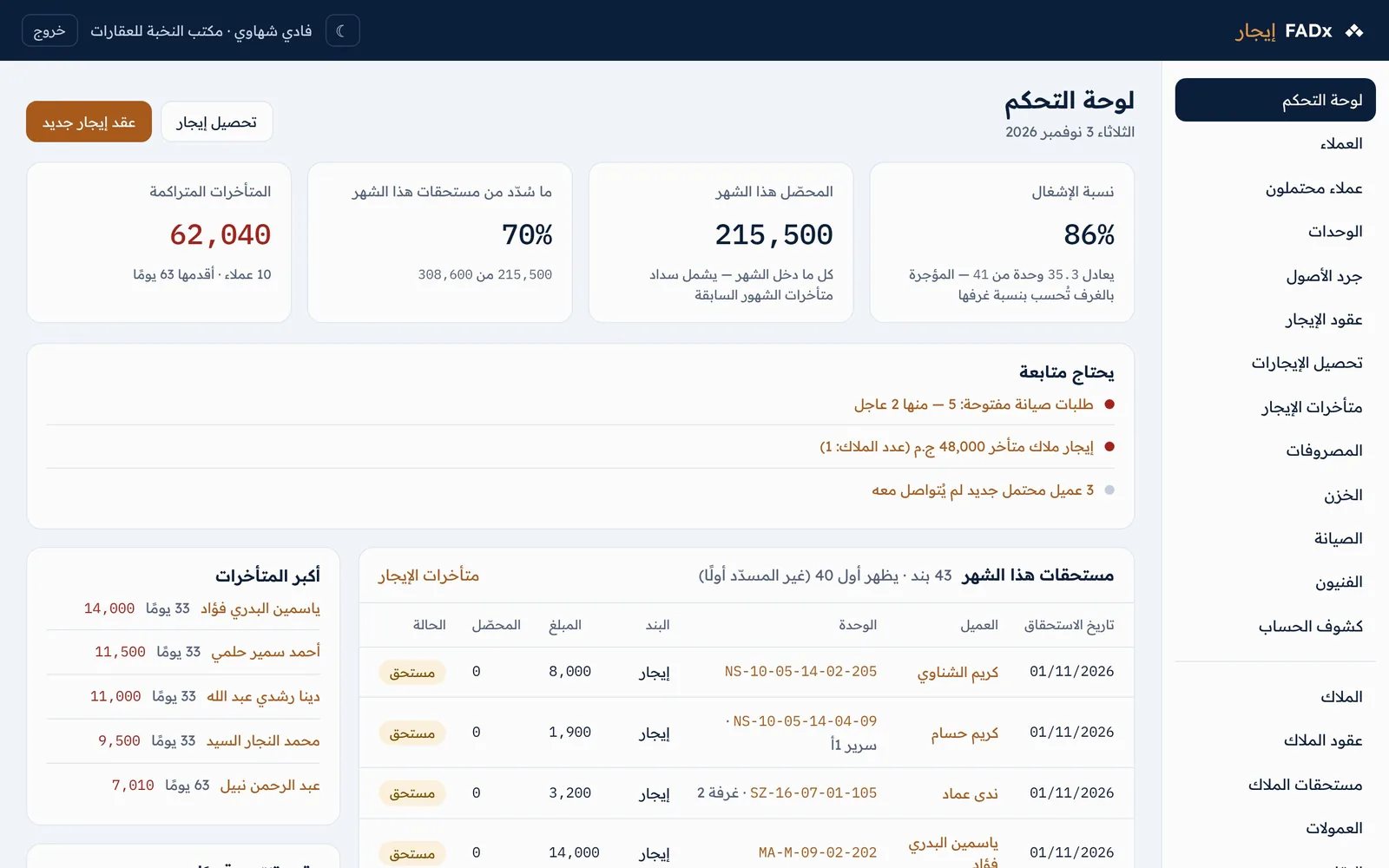
Quick start: a new office sees a “Start here” card with three steps — add a unit, add a client, then create your first lease. After the first lease, the office’s figures take its place automatically.
- Financial entries are never deleted: payments, charges, expenses, transfers, commissions and cash-box movements can only be cancelled with a reason. They stay on record with who cancelled them and when, and balances are recalculated automatically.
- Required fields are marked *. If a form doesn’t save, you see “Not saved — check the marked fields” and what you typed stays in place.
- Numbers can be typed in Arabic or English digits and are stored in one format. The currency is the Egyptian pound.
- Every financial or irreversible action asks for confirmation first. Double-clicking Save does not create two records, and the system warns you if a similar payment was recorded for the same client within minutes.
- You are logged out automatically 8 hours after logging in.
- Attachments: JPG, PNG or WEBP images or PDF files, up to 5 MB each, on the Pro and Max plans and during the trial.
02Getting started and setting up the office
Creating the office account:
- 1 Open rent.fadx.ae/signup and enter the “Office name”, “Your name”, “Phone”, “Email (for login)” and a “Password” of at least 10 characters.
- 2 Accept the terms of use and privacy policy, then click “Create account”.
- 3 Open the activation email (valid for 3 days) and click the link. If you can’t find it, check your spam folder or resend it from the login page.
- 4 Log in and the free trial begins: 30 days with every feature, no payment card needed.
Signing up automatically creates the office, your account with the Manager role, the default settings, the common expense categories and a cash-type “Main cash box”. After that you log in with your email and password. If you forget it, click “Forgot password?” and you will get a single-use link valid for two hours. After 5 failed login attempts, login is blocked for 15 minutes to protect the account.
Settings (Manager only): the values here are defaults — they are suggested on every new lease and can be changed on the lease itself.
| Setting | What it controls |
|---|---|
| Office details | The office’s name, phone, email and address as they appear at the top of receipts, printed leases and statements. |
| Grace period after the due date | The number of days (0 to 60, default 5) a charge stays “Due” before it becomes “Overdue”. Arrears and fines both depend on it. |
| Lease expiry alert | How many days before its end a lease appears under “Leases ending soon” (default 60). |
| Notice period before moving out | The notice period suggested on a new lease (default 30 days). |
| Default rent payment cycle | Monthly, quarterly (term), half-yearly or yearly. |
| Tenant commission | On a new lease and on renewal: none, a percentage of the monthly rent, a number of months, or a fixed amount. |
| Late fine after the grace period | None, a fixed amount, or a percentage of the overdue amount. It is applied with a button on the arrears screen, once per rent charge. |
| Optional features | Turn on “Post-dated cheques” if you deal in cheques. A feature that is off disappears from the menus, but its data is kept. |
| Payment methods in use | Cash, bank transfer, InstaPay, e-wallet, cheque, Fawry, bank deposit, card. Only the ones you enable appear on the collection form. |
- Printed lease text: write the lease wording your office uses and include the variables that are filled in at print time: {office}, {tenants}, {unit}, {space}, {address}, {start}, {end}, {rent}, {cycle}, {deposit}, {services}, {notice} and {escalation}.
- Ready-made clauses: under “Ready-made clauses”, write one clause per line (up to 40), such as “No smoking inside the unit”. They appear as tick boxes on the lease form, and the ticked ones are printed.
- Expense categories: one list for unit and building expenses (plumbing, electrics, painting…), each with a default party to charge (owner, client or not recoverable), and one for general office expenses. You can add a category or hide one you don’t use; its past expenses stay as they are.
- Addresses and codes: use the “Addresses and codes” button at the top of the settings page. An address is a tree: governorate → city → district → neighbourhood. Governorates are fixed; you add the cities, districts and neighbourhoods you work in. A city code is two Latin characters; district and neighbourhood codes are their numbers. Changing a code updates every unit code beneath it automatically.
Users (Manager only): every employee has their own account, and the manager neither knows nor sets employees’ passwords.
- 1 On the “New user” card, enter the email and name, choose the role, then click “Send invitation”.
- 2 The employee receives a single-use link, valid for a week, and sets their own password from it.
- 3 Later, from the accounts table, you can change the role, suspend the account by unticking “Active” (access is cut immediately), or set “Their commission %” of the office’s commission on the leases they handle.
| Permission | Manager | Accountant | Leasing agent | Viewer |
|---|---|---|---|---|
| View clients, units, leases, collection, expenses and maintenance | ✓ | ✓ | ✓ | ✓ |
| Add clients and units; create and activate leases | ✓ | — | ✓ | — |
| ID photos and client documents | ✓ | — | ✓ | — |
| Collect rent and record expenses | ✓ | ✓ | ✓ | — |
| Cancel payments and charges; discounts, fines and deposit refunds | ✓ | ✓ | — | — |
| Charge an expense to the owner or tenant | ✓ | ✓ | — | — |
| Owners and their transfers, cash boxes, technician payments, reports and export | ✓ | ✓ | — | — |
| Maintenance requests and technician files | ✓ | — | ✓ | — |
| End a lease; owner contracts; record commissions | ✓ | — | — | — |
| Users, settings, subscription and the full data copy | ✓ | — | — | — |
No user is ever deleted — to preserve the record of what they did, they are suspended instead. The last active manager in the office cannot be suspended. A leasing agent does not see owners, cash boxes or reports and cannot cancel anything; a viewer can only look, with no adding or editing.
Daily work
03Buildings and units
The unit is the foundation of everything in the system: leases are signed on it, expenses and maintenance requests are recorded against it, and the office’s profit is calculated from it. To add one, go to “Units” → “New unit” (Manager and Leasing agent):
- 1 Address: choose the “Governorate”, then the “City”, then the “District” and “Neighbourhood” if there are any. If one is missing from the list, choose “+ New” and add it on the spot.
- 2 Building: pick a registered building, or “+ New building” and enter the “Building number”, its name and the street or a landmark. A building with the same number at the same address is treated as the same building.
- 3 Floor and flat number: the “Unit code” appears right below them, exactly as it will be saved.
- 4 Unit details: number of rooms, area, status, type of housing (families, young men, young women, mixed) and whether it is furnished.
- 5 Letting method: “Whole unit only”, “Whole or by room”, or “By bed within rooms” with the number of beds per room. Rooms and beds are created automatically, and you can edit their names and prices after saving.
- 6 Click “Save unit”.
The unit code is made up of city - district - neighbourhood - building - floor - flat. For example, 6O-04-02-195-05-10 means 6th of October, District 4, Neighbourhood 2, building 195, fifth floor, flat 10. The ground floor is 00 and the basement B1. Two units cannot share the same building, floor and flat number.
Unit status: you only ever choose “Available”, “Maintenance” or “Suspended” by hand. “Let” appears automatically when the unit has an active lease today, or “Let by room” when it is partly let. A unit under “Maintenance” or “Suspended” cannot be let and its spaces do not appear on the lease form — set it back to “Available” first from the “Unit status” card on its page. We advise against changing the status of a unit with an active lease.
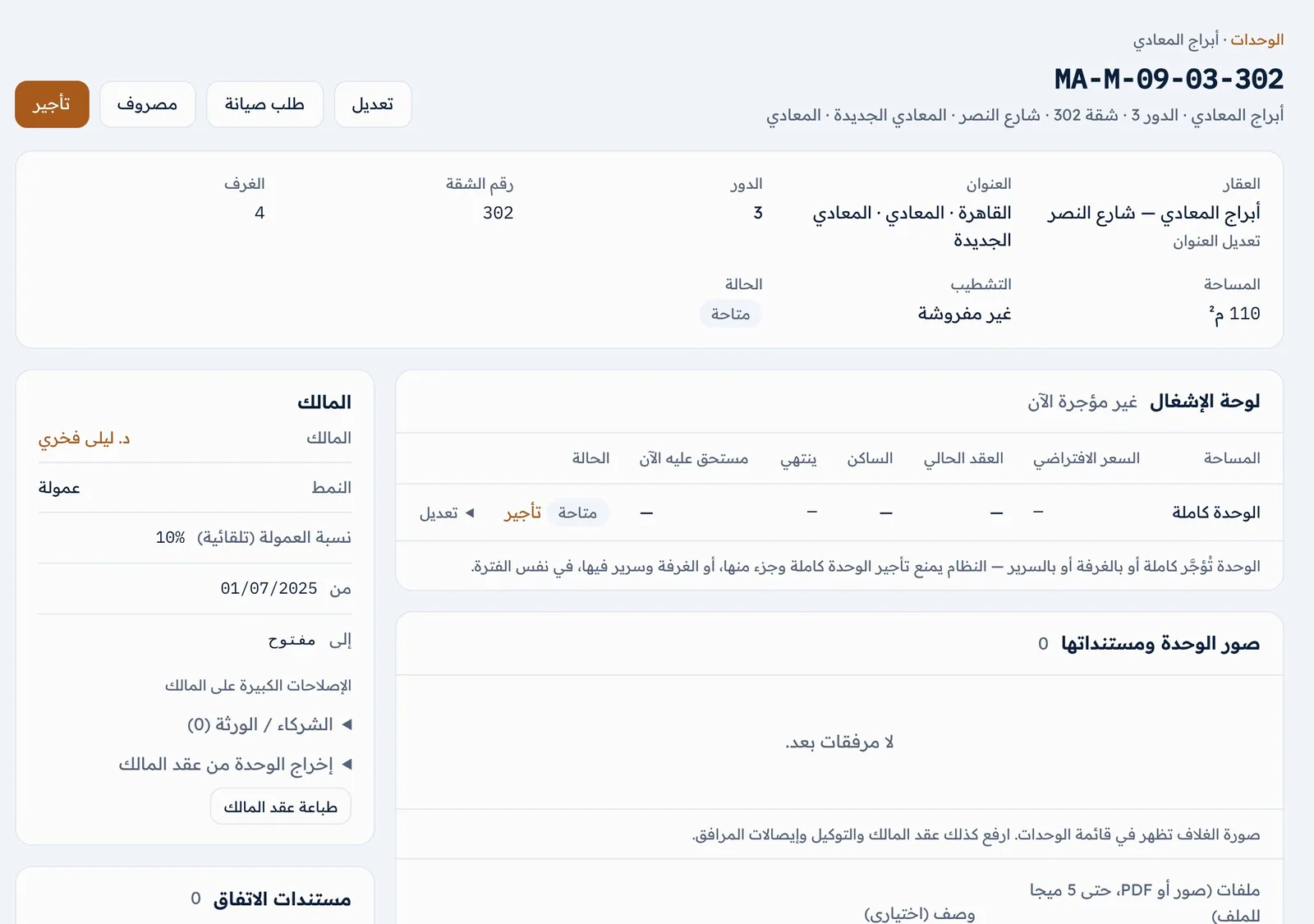
- Buttons at the top: “Let”, “Expense”, “Maintenance request”, “Edit”, and “Bulk collection” for units let by the room.
- Occupancy board: one row per space (whole unit, rooms, beds) with its default price, current lease, occupant, end date and what they owe now.
- Unit photos and documents, with a cover photo shown in the units list. It is a good place to upload the owner contract, power of attorney and utility receipts.
- The history of leases and expenses, the unit inventory, services and utility bills.
- Owner card (Manager and Accountant): the owner, contract type, commission, partners or heirs with their shares, and the office’s profit from the unit over the last 12 months.
Rooms and beds: every unit always has a “Whole unit” space. For part-letting, add rooms — and beds inside rooms — from the “Add room / bed” card. Each space has a “Default price per instalment” that is suggested when you create a lease on it, and unticking “Available to let” takes the space off the lease form. Overlaps are blocked outright: the whole unit and one of its rooms, or a room and a bed in it, cannot be let for the same period — and drafts reserve the space too. Occupancy is proportional, so one room let out of three counts as a third of a unit.
Services and utility bills: on the “Services” card, record the unit’s services (electricity, water, gas, internet…), the provider, the account or meter number, and how each is billed — a “Fixed” monthly amount or “By meter” with readings. Under “Utility bills” (Manager and Accountant), enter the company’s bill: period, amount, payment deadline and who pays it. The system splits the bill among the occupants whose leases overlap that period, by days or equally, then applies each lease’s terms: “As billed” adds the full share, “Capped” adds only what exceeds the monthly cap, and “Included in rent” or “Fixed amount” adds nothing. Bills not yet paid to the company stay under “Needs attention” until you click “Paid today”.
- Asset inventory: on the “Unit inventory” card, list the unit’s contents — item, quantity, location (general or a specific room), ownership (the office’s or the owner’s), condition (sound, defective, damaged, missing), value and purchase date, with a photo for each item.
- Copy the inventory from another unit: handy for identical flats — rooms are matched by name and existing items are not duplicated.
- Print the inventory list for the tenant: a list with columns for condition at move-in and move-out, plus the tenant’s acknowledgement and signature.
- The “Asset inventory” report: total items and value by unit or by item, with filters, printing and Excel export.
04Clients and leads
A client is the tenant, or whoever the office deals with over a rental. Someone looking for a place is first recorded as a “lead” until they become a client with a lease. To add a client, go to “Clients” → “New client”. “Full name” * and “Phone” * are enough to start; after them come the alternative phone, email, national ID, nationality, gender, permanent address and notes.
- An Egyptian national ID number has 14 digits.
- If a client with the same phone or national ID already exists, you see “This person seems to be registered already” with their details. To save anyway, tick “Different person — save despite the match”.
- The client code is generated automatically. “Gender” is used to warn you when placing a man in women’s housing, or the other way round.
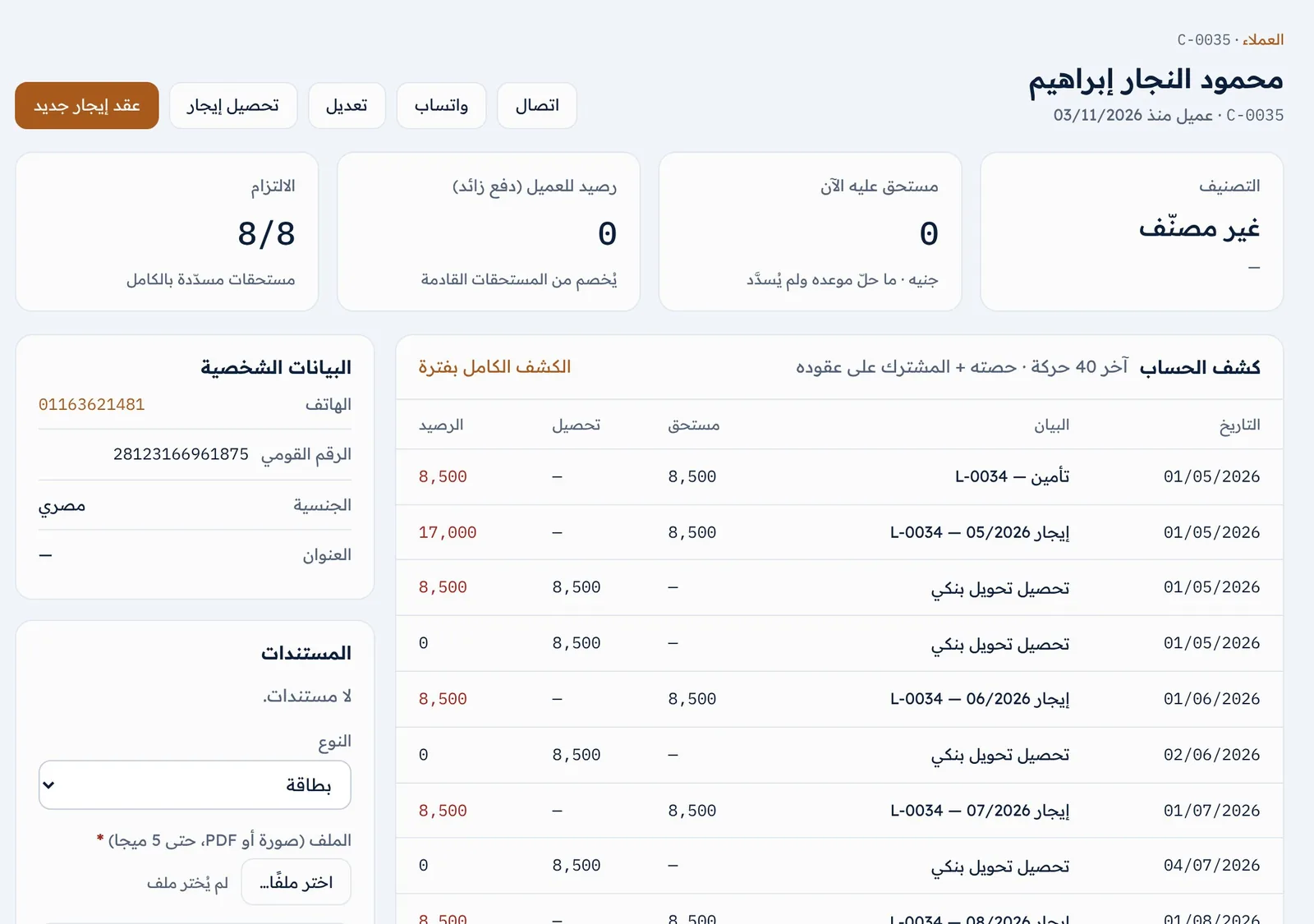
The client page shows the “Call” and “WhatsApp” buttons (with a ready welcome message in the office’s name), “Collect rent” and “New lease”; then the rating, the amount due now, any client credit from overpayment, and the commitment score (the number of charges paid in full); then the statement, amounts refunded to them, and their leases.
Documents and ID photos are uploaded from the client’s page once it is saved: ID card, passport, lease, receipt, personal photo, other. Only the Manager and Leasing agent can see them — the Accountant and Viewer do not see this section, and FADx support never does. Deleting a document is permanent.
Client rating: on the “Edit rating” card, choose Excellent, Good, Late, Defaulting or Rejected, and give a reason. The rating is manual, and “Rejected” hides the client from the new lease form so nothing can be let to them.
Leads: under “Leads” you track who asked, about which unit, with what budget, and who has had a viewing.
- 1 Add the lead: name and phone, what they want (a whole flat, a room, a bed), the area, the budget, the move-in date and the source (Facebook, OLX, referral, signboard…).
- 2 From their page, record viewings — unit, date and outcome. Their status changes to “Viewing” automatically.
- 3 Keep the status up to date — New, Contacted, Viewing, Let, Not interested — with a dated note for each follow-up.
- 4 Once you have a deal, click “Convert to lease”: a new client is created (or linked to an existing one with the same phone) and the lease form opens in their name. When the lease is saved, the lead’s status changes to “Let” automatically.
The dashboard shows how many new leads have not been contacted yet, so no enquiry slips through.
05Leases
A lease ties one or more tenants to a specific space for a specific term. Activating it creates every charge for the term in one go — rent, deposit, commission and fixed services — so the office always knows what has fallen due, what has been collected and what is late.
| Status | Meaning |
|---|---|
| Draft | Reserves the space but bills nobody until it is activated. It can be cancelled, which frees the space. |
| Active | Activated, with its charges created. It cannot be cancelled — only ended. |
| Ended | The lease moves to this status automatically the day after its end date. |
| Cancelled | A draft cancelled before activation. |
“Leases” has a tab for each status, an “Ending within … days” tab that follows your alert setting, and search by lease code, unit, tenant name or phone. To create a lease, go to “Leases” → “New lease”, or use “Let” on the unit page or “New lease” on the client page. The form is laid out in cards, in this order:
- 1 Let space: choose the whole unit, a room or a bed. Spaces already let or reserved are greyed out with the reason, and become available automatically if you pick dates after their lease ends.
- 2 Tenants: the first tenant, plus up to 5 co-tenants with “+ Co-tenant”. Each has “Their share of the rent” (leave it blank if the amount is shared), and you mark the “Main party”. If the client isn’t registered, click “+ New client” — what you have typed is kept, and you come back to the form with the client selected.
- 3 Terms: start date, end date (blank = one year), payment cycle, “Rent per instalment” (the amount paid each period — month, term or year), the deposit and notes.
- 4 Deposit and annual increase: who holds the deposit (office or owner), any deferred part of the deposit to be billed later, the increase percentage and the months between increases (increases compound).
- 5 Services: for each one (electricity, water, gas, internet, cleaning and owners’ association, other services) choose not applicable, tenant pays as billed, included in rent, a fixed monthly amount, or a cap with the tenant paying the excess.
- 6 Commission and agent in charge: the office’s commission from the tenant, and the letting commission from the owner (blank = per the settings or the owner agreement; 0 = no commission). Only the Manager and Accountant can edit commission.
- 7 Clauses and notice: the notice period before moving out, the ready-made clauses that apply, and an extra clause for this lease.
- 8 Leave “Activate the lease now and create all charges” ticked to activate straight away, or untick it to save a draft. Then click “Save lease”.
- Activation creates every charge for the term once, and they are never regenerated: the deposit on the start date (and the deferred part on its own date), the tenant commission if any, rent for each period on its first day, and a services charge per period for fixed-amount services.
- A partial final period is charged pro rata, and the annual increase is applied automatically when it falls due.
- Shares between co-tenants: when each has a share, each person is billed for their own share only; whatever the shares don’t cover stays shared and is attributed to the main party in arrears. The shares must not add up to more than the rent.
- The letting commission from the owner is deducted from their account, and the agent’s commission is recorded as due to them.
- Plan limit: once you exceed your plan’s limit of active leases, activating a new one is refused with an explanatory message. Collection never stops, and ended leases don’t count.
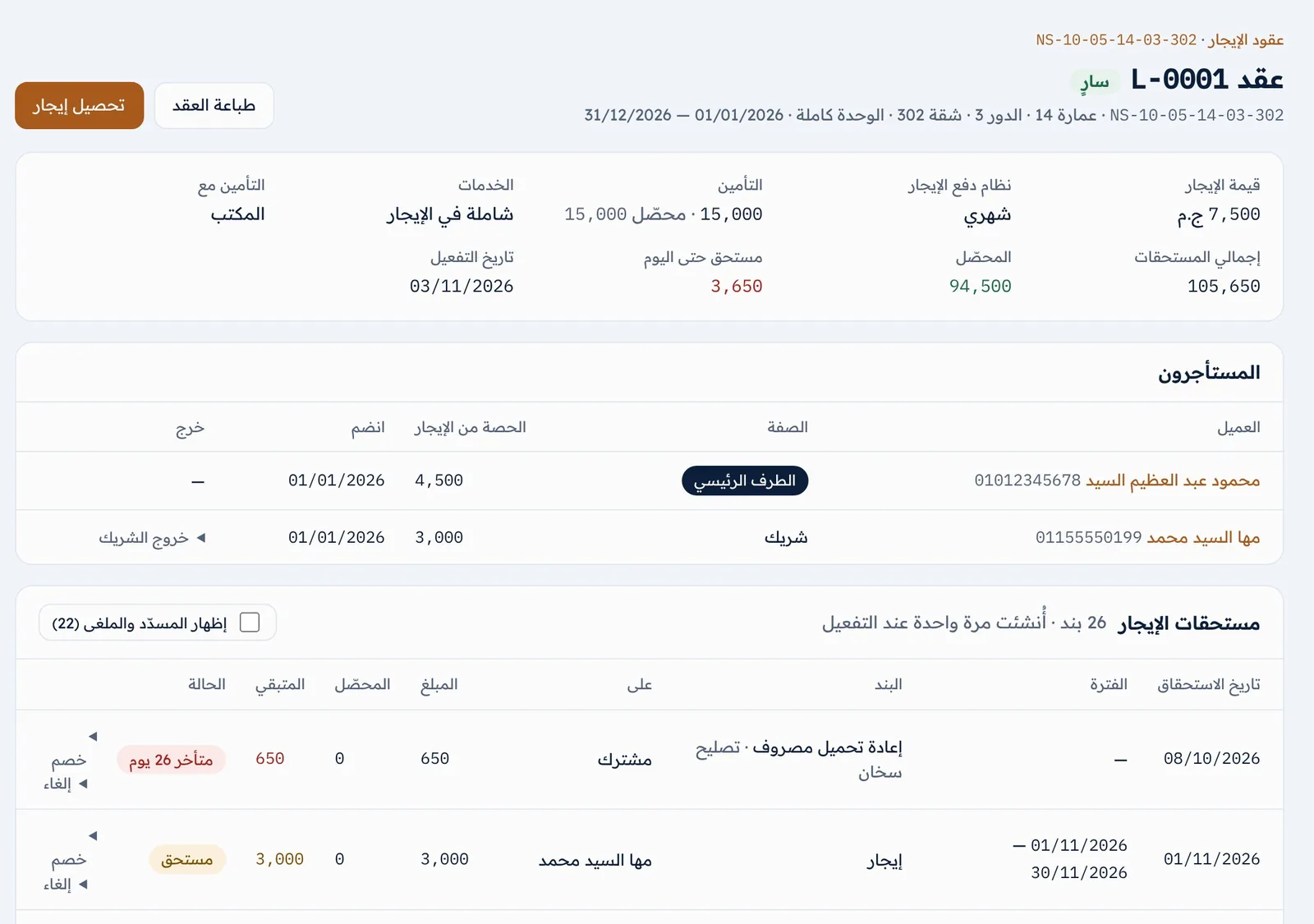
The lease page shows the rent, payment cycle, deposit, services, increase and commission, along with total charges, collected and due to date. Below is the rent schedule with each charge’s status: Paid, Due, Partial, Overdue … days, or Not yet due. On any row the Manager and Accountant can apply a “Discount” or “Cancel” the charge with a reason, and the “Extra charge” card adds a charge outside the schedule (services, fine, damages, other). “Print lease” opens the lease in your office’s wording with the selected clauses and signature boxes — click “Print / Save PDF”, then upload the signed copy on the “Signed lease and attachments” card.
Renewal: thirty days before a lease ends, an alert appears with a “Renew” link and a button to ask the tenant about renewing over WhatsApp, using a ready message. “Renew with a new lease” opens a new lease form filled with everything from the current one: it starts the day after the old one ends and runs for a year, with the same space, tenants, shares, rent, services and clauses, plus a “Carry over the deposit held from the previous lease” tick. Change what you need (the rent, say) and save. The deposit moves across internally with no cash movement, and the renewal commission is applied if there is one.
- 1 Ending a lease (Manager only): on the “End lease” card, enter the “End date (last day of occupancy)” and the “Reason”. Leave the option to charge the final period by days ticked if you want to bill the tenant only up to the day they leave.
- 2 Add a no-notice fine if needed.
- 3 Confirm. Charges for every period after the end date are cancelled, and anything paid in advance for them returns as client credit, which is first applied automatically to their open charges on the lease. If the date is in the future, it acts as notice to vacate: the lease stays active until that date passes.
- Settling the deposit (Manager and Accountant) from the “Deposit” card: “Deduct from deposit” pays off charges or damages with no cash movement, and “Refund to client” records the amount, method and cash box (give the reason for keeping the rest if you refund less than the deposit held).
- Printable settlement: the “End-of-lease settlement” document shows the deposit collected, what was deducted and what was refunded, and the net due to or from the tenant, with both parties’ acknowledgement and signatures.
- A co-tenant leaving: use “Co-tenant leaving” on their row, with the leaving date and what happens to their share — it lapses and the rent drops, it is added to the shared part for the others, or it is added to another co-tenant’s share. The main party cannot leave an active lease; end the lease or create a new one.
- Moving an occupant: on the “Move occupant to another bed or room” card (within the same building), choose the new place, the move date and the new rent if it changes. The current lease ends the day before and a new one starts with the same parties and end date; the deposit and anything prepaid carry over.
- Handover reports: a move-in report on the day of entry (items and their condition from the unit inventory, meter readings, number of keys and cards) and a move-out report on the day of exit (condition compared with move-in, the value of each damage, keys returned). Damages become a charge with “Convert damages to a charge on the tenant” (Manager and Accountant), and are then deducted from the deposit.
06Collection and arrears
Every payment is recorded against the client, allocated automatically to their charges, placed in the right cash box, and given a receipt you can send to the tenant as a WhatsApp link.
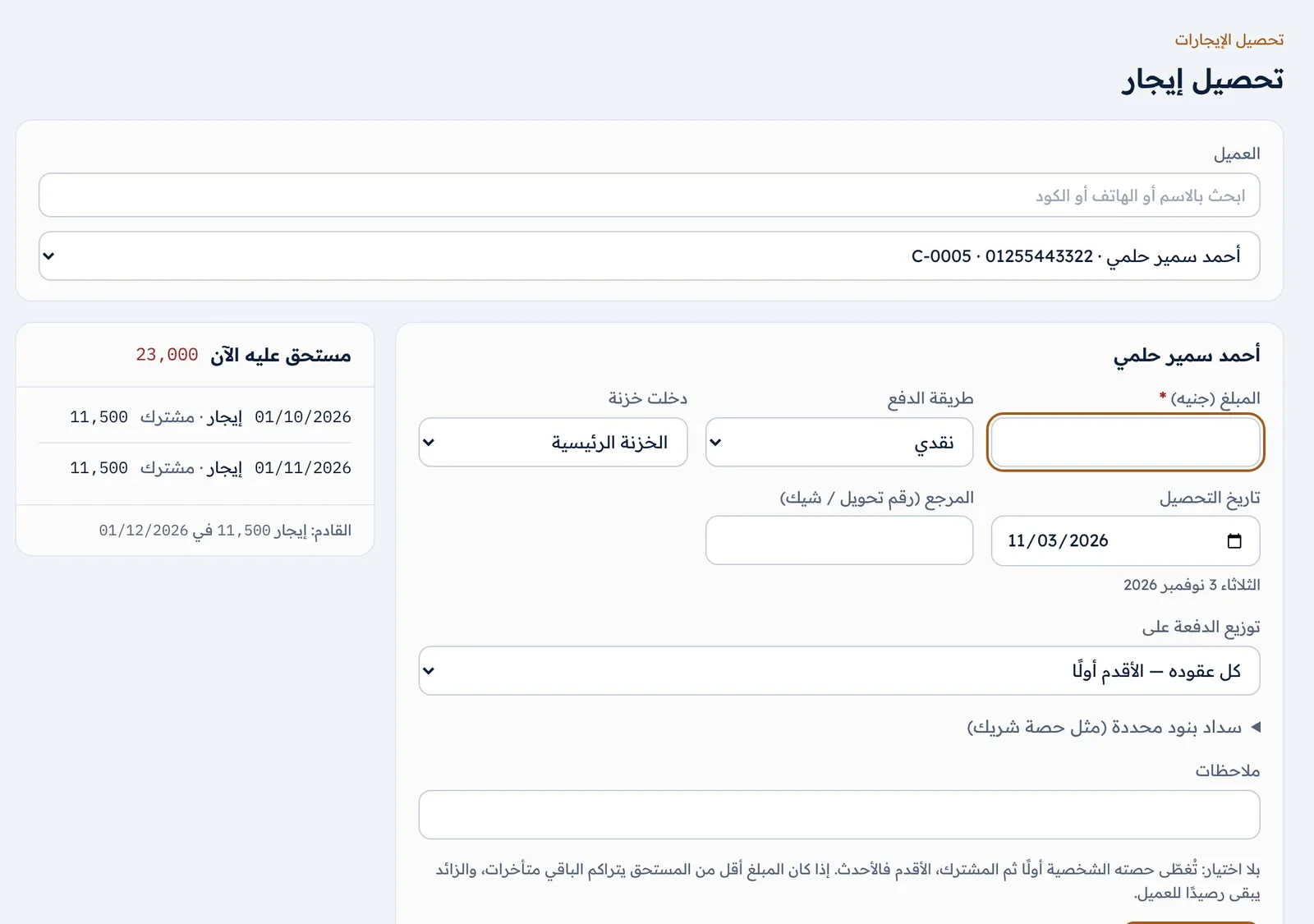
- 1 Go to “Rent collection” → “Collect rent”, use the “Collect rent” button on the client or lease page, or tap “+” on the phone.
- 2 Choose the “Client” (search by name, phone or code). The “Due now” card appears with its items, the next charge and any existing credit.
- 3 Enter the “Amount” and choose the “Payment method”. The matching cash box is selected automatically, and you can change it.
- 4 Change the “Collection date” if it was earlier (future dates are not accepted) and enter the reference (transfer or cheque number).
- 5 Click “Record payment” and confirm. The payment page opens, showing how it was allocated.
- Charges already due are covered first — the client’s own share from oldest to newest, then the shared part — followed by charges not yet due (advance payment) in date order.
- If the amount is less than the charge, the charge stays “Partial” and the rest builds up as arrears. Anything beyond all charges remains as client credit.
- To direct a payment to particular items (a co-tenant’s share, for example), open “Pay specific items” and select them — they are covered first and the rest is allocated automatically. “Allocate payment to” restricts allocation to a single lease.
- Client credit (an overpayment) shows on their page with two buttons: “Apply to open charges” and “Refund credit to client” (Manager and Accountant), with the method and cash box.
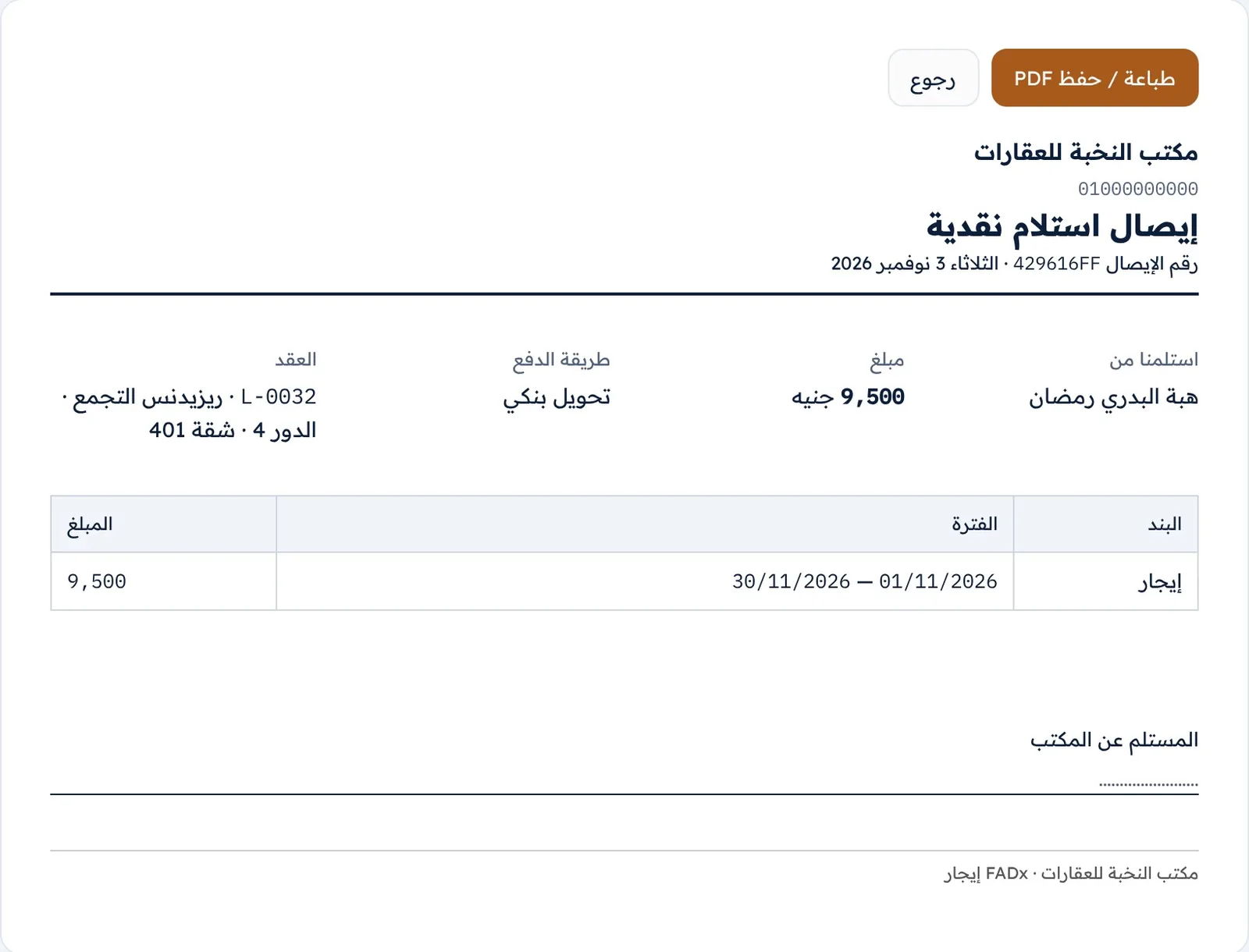
Receipts and cancelling a payment: on the payment page, “Printable receipt” produces a numbered receipt with the office name, payer, amount, method, lease and itemised breakdown, plus a signature box for the recipient. “Send receipt by WhatsApp” prepares a message to the tenant with the amount, date and a receipt link — the link opens without logging in, shows only that receipt, and stops working if the payment is cancelled. To cancel (Manager and Accountant), use the “Cancel payment” card and give a reason such as “Bounced cheque” or “Duplicate entry”: the linked charges reopen, and the payment stays on record as cancelled under the name of whoever cancelled it, counting towards no balance.
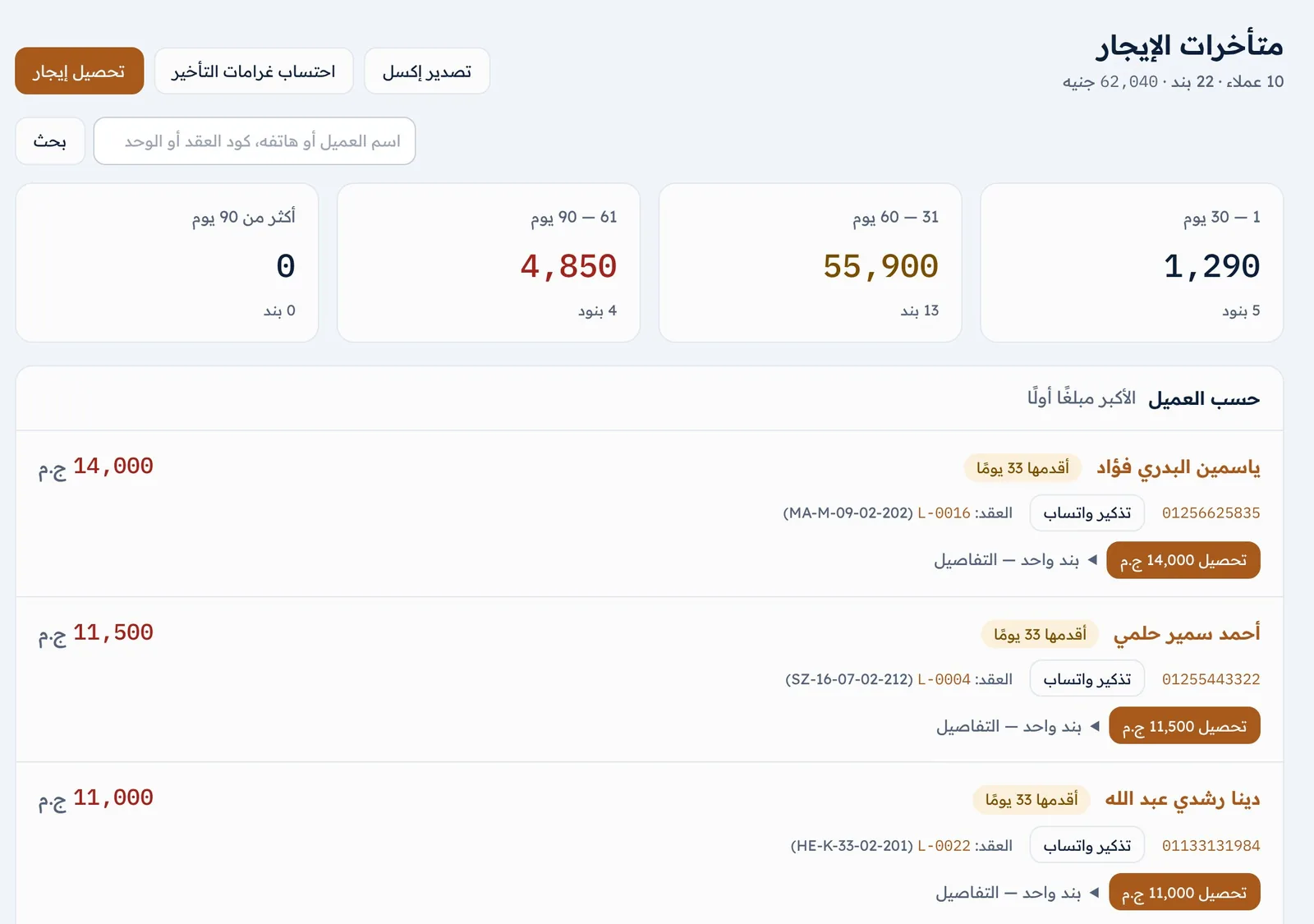
Rent arrears: an arrear is any open charge whose due date has passed by more than the grace period. The “Rent arrears” screen shows debt ageing (1–30 days, 31–60, 61–90 and over 90 days) by amount and number of items, then clients from the largest amount down, with the age of the oldest debt (orange over 30 days, red over 60) and the phone number, a “WhatsApp reminder” button with a ready, polite message, a “Collect” button that opens the collection form with the full amount (edit it if they pay part), and “Export to Excel” for the whole list. A co-tenant’s share is attributed to them alone; the shared part goes to the lease’s main party.
Late fines are not automatic: once the fine is enabled in the settings (a fixed amount or a percentage of the overdue amount), the Manager or Accountant clicks “Apply late fines” on the arrears screen. A fine is added to every overdue rent charge that has not had one before — once only per charge — and counts as office income. You choose when to apply it (the first of each month, say); to waive a fine, cancel its charge from the lease page.
- Discount on a charge (Manager and Accountant): use “Discount” next to the charge on the lease page and enter the amount and reason. For a rent discount, set “Who bears the discount?”: on a commission-contract unit the default is the owner (who receives less), and choosing the office compensates the owner for what they would have got; on a sublet unit the default is the office, and choosing the owner deducts it from what they are due. Discounts on anything other than rent are always borne by the office, and the deposit cannot be discounted.
- Bulk collection: in units let by room or bed, the housing supervisor may hand over everyone’s rent at once. On the unit page, click “Bulk collection” and select the items paid — a separate payment, with its own receipt, is recorded for each occupant.
- Post-dated cheques: once enabled in the settings, record a lease’s cheques from its page (“Record cheques”): the bank, the first cheque number, and one cheque per upcoming charge. A cheque settles nothing until it is cashed. Its statuses are In the cash box → Deposited → Collected, or Bounced (with a fee to the tenant if you wish), or Returned to the client. The dashboard flags cheques falling due within a week.
07Expenses and cash boxes
Every expense in the system answers three questions: what was it, who paid it, and who bears it? From the answers, the system works out its effect on the cash box, on the unit’s profit and on the owner’s or tenant’s account. To record one, go to “Expenses” → “New expense” or use “Expense” on the unit page, then choose the scope first:
- A unit: then pick the unit.
- A whole building: the amount is split equally across the building’s units, and each unit’s share is charged to its owner as you choose.
- The office itself: office rent, salaries, advertising and transport — deducted from the office’s profit and tied to no unit or owner.
- 1 The expense: amount, date (no future dates), category and description, the technician or supplier (a registered one or another name), and a photo of the receipt.
- 2 Who paid? “The office paid”, “The owner paid it themselves” or “The tenant paid it themselves”. What the owner or tenant paid is recorded for tracking only and does not leave the office’s cash box. If the office paid, choose “Paid now” from a cash box, or “On the technician’s account (deferred)” — nothing goes out now and the amount is added to the technician’s account.
- 3 Who bears it? (when the office paid): the office, so it comes off the unit’s profit; the owner, so it is deducted from what they are due; or the tenant, so it is added as a charge on their lease.
| When is the owner charged? | Effect on the owner statement |
|---|---|
| Now | One deduction, dated the same day as the expense. |
| In monthly instalments | Between 2 and 60 monthly instalments, starting from the expense date. |
| At the end of their agreement | One deduction dated the end of the owner contract, shown under “Scheduled — not yet due”. |
| Only if they end the agreement early | Deducted only if the owner contract is ended early, on the day it ends. |
Owner approval: if the owner contract has an “Expense approval limit” and the amount exceeds it, the expense is recorded as “Awaiting owner” and nothing is deducted. On the expense page, the Manager or Accountant records the owner’s answer and how it was given (WhatsApp, phone…): “Owner approved”, so it is deducted on the chosen timing, or “Refused — office bears it”.
If the amount is more than the balance of the cash box it is paid from, you are asked for explicit confirmation — the same rule applies to deposit refunds, credit refunds and commissions paid out. Charging an expense to the owner or tenant is a financial decision for the Manager and Accountant; a leasing agent records the expense against the office and asks them to reassign it. To cancel an expense (Manager and Accountant), give a reason — whatever was deducted from the owner or added to the tenant is cancelled with it.
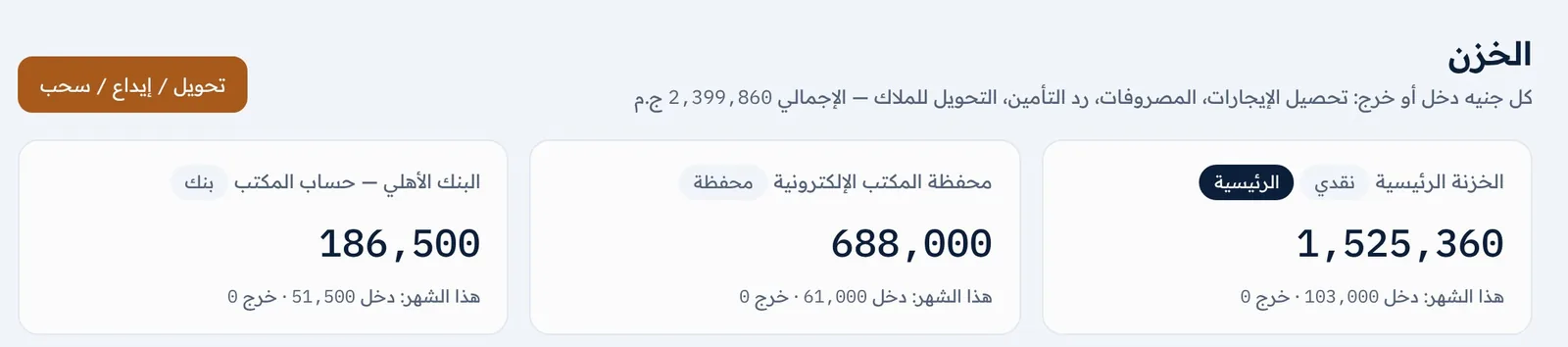
- Under “Cash boxes” (Manager and Accountant): every office has a “Main cash box”, and you can add others of three types — cash, bank and wallet.
- Balances are never typed in: they are calculated from the movements, so cancelling a payment or expense corrects the balance automatically.
- Default cash box per payment method: cash goes to the cash box; transfers, bank deposits, cheques and cards to the bank; InstaPay, wallet and Fawry to the wallet. You can change it on any form.
- Money in: client collections, commissions received, deposits and incoming transfers. Money out: expenses paid, technician payments, deposit and credit refunds, transfers to owners, commissions paid and withdrawals.
- The “Cash box movement” card: a transfer between two cash boxes (banking the cash, for instance), a deposit of cash from outside the accounts, or a withdrawal that is not a recorded expense — with the amount, date and description.
- Click any cash box’s name to open its statement for a period you choose: opening balance, every movement with money in, money out and the running balance, and the closing balance, with a print button.
Collections, expenses, deposit refunds and owner transfers are posted to their cash box automatically from their own screens — do not enter them again under “Cash box movement”.
08Maintenance and technicians
The system follows every fault report from the moment it is logged until it is closed, keeps a performance file and a running account for each technician, and links repeat faults to the earlier repair when it is still under warranty.
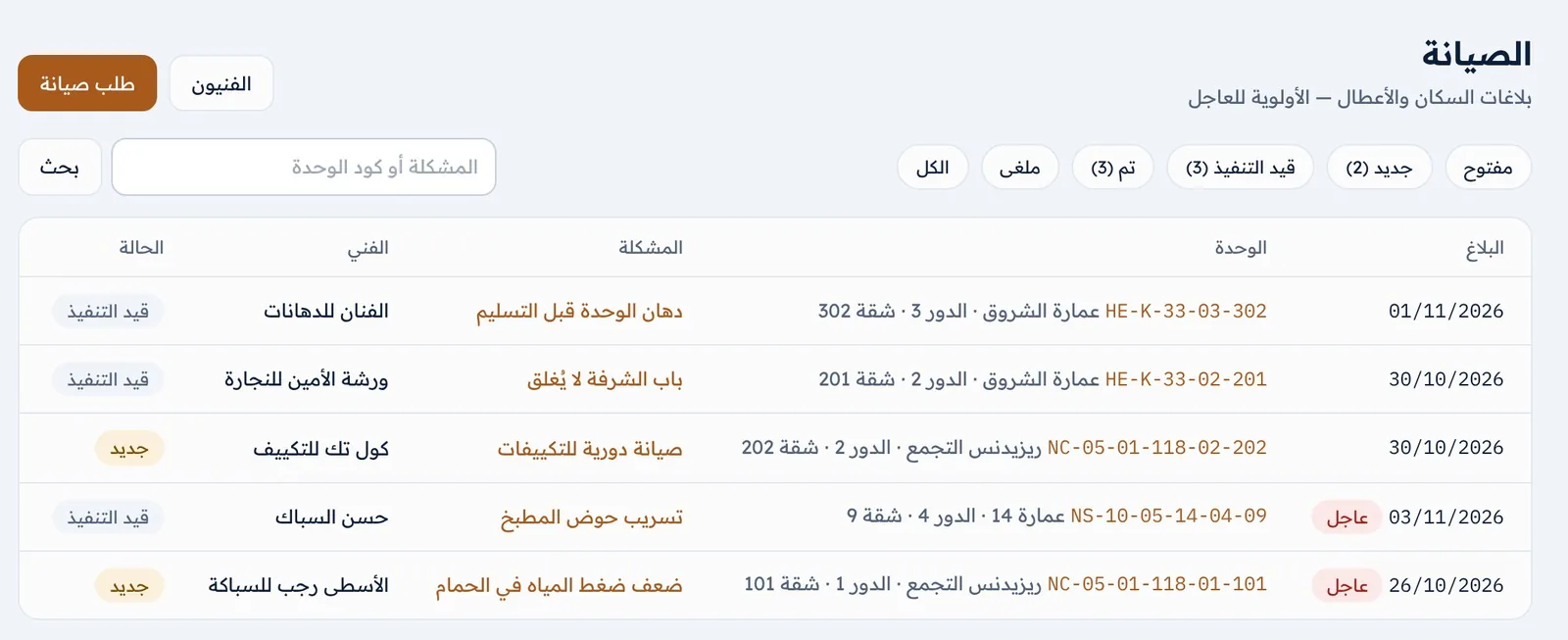
- 1 Go to “Maintenance” → “Maintenance request”, or use “Maintenance request” on the unit page. A ✓ marks the technicians who match the fault type and the unit’s area, updating as you choose.
- 2 Enter the “Problem” (for example “Bathroom water heater leaking”), choose the “Fault type” and “Priority” (normal or urgent), and add who reported it, the report date and the details.
- 3 Choose the “Technician” now or later. An assigned request becomes “In progress”; an unassigned one stays “New”.
- 4 Save, then upload photos of the problem from the request page.
Sending the work order: on the request page, click “Send request to technician by WhatsApp” — a ready message with the office name, the problem and its priority, the unit and its full address, the occupant’s name and phone, and a note if the previous repair is still under warranty. Or simply “Call technician”.
- Close the request from the “Repaired” card: the completion date, the cost (recorded as an expense linked to the request) and the repair warranty (none, 1 month, 3 months, 6 months, 1 year).
- Cost borne by: the owner, the client, or not recoverable (charging the owner or client is for the Manager and Accountant), with the timing of the owner deduction.
- Paying the technician: “We paid the technician now” from a cash box, or “On the technician’s account (deferred)”.
- Rate the technician’s work from 1 to 5 stars with a note, then click “Close request”.
Same fault under warranty: if a new report is logged on a unit with an earlier repair still under warranty, an alert says so and offers “Same fault — treat as under warranty”. Clicking it links the request to the original repair, assigns it to the same technician and counts it in their file under “Faults returning under warranty”, so you can ask them to fix it at no new cost.
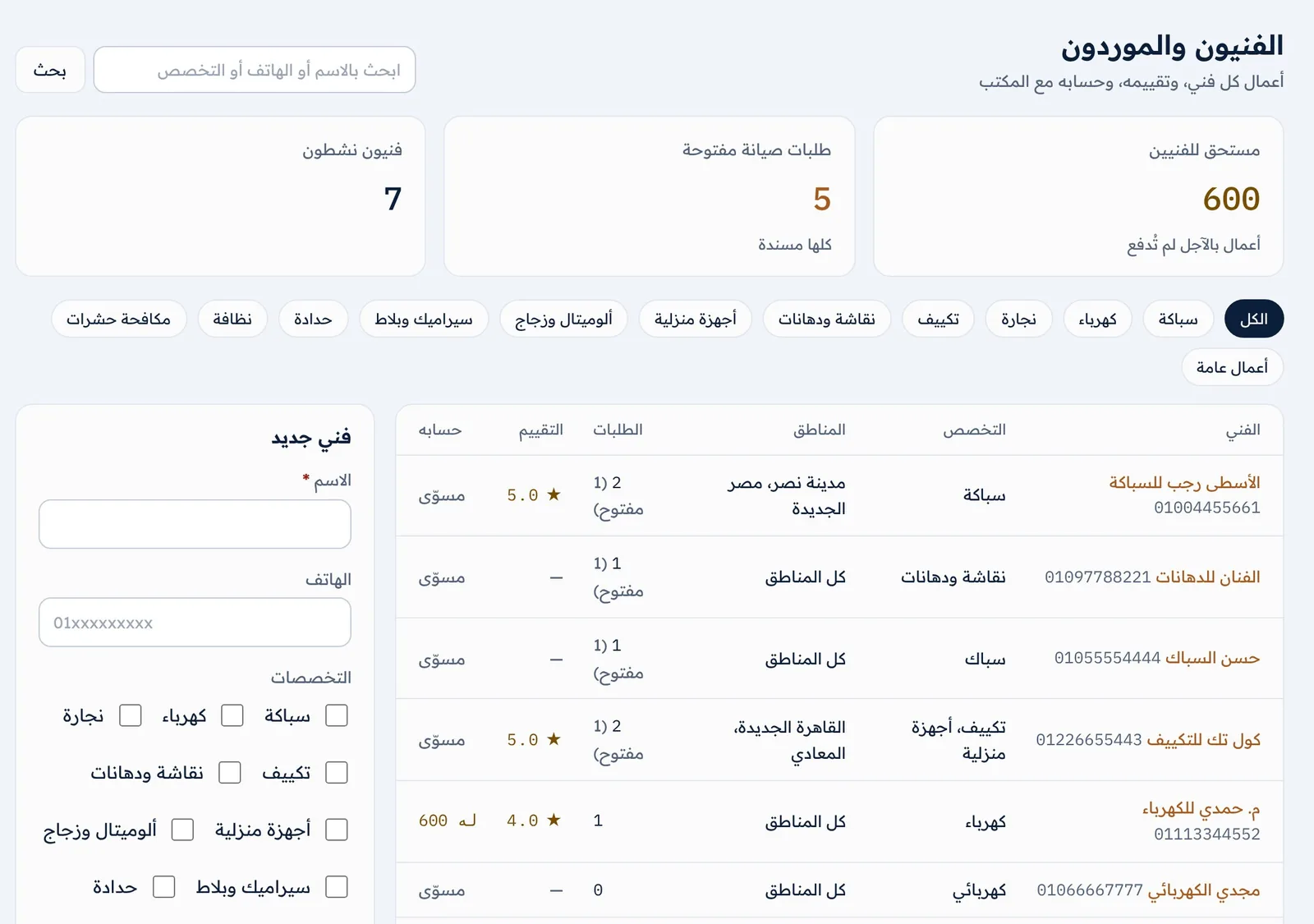
Technicians: under “Technicians”, add each one with their name, phone, specialities and working areas (none selected = all areas). Their page shows their account now (owed by the office, paid in advance, or settled — Manager and Accountant only), open and completed requests, average rating, average completion time, faults returning under warranty, what they have been paid this year, and their recent jobs with cost, warranty and rating.
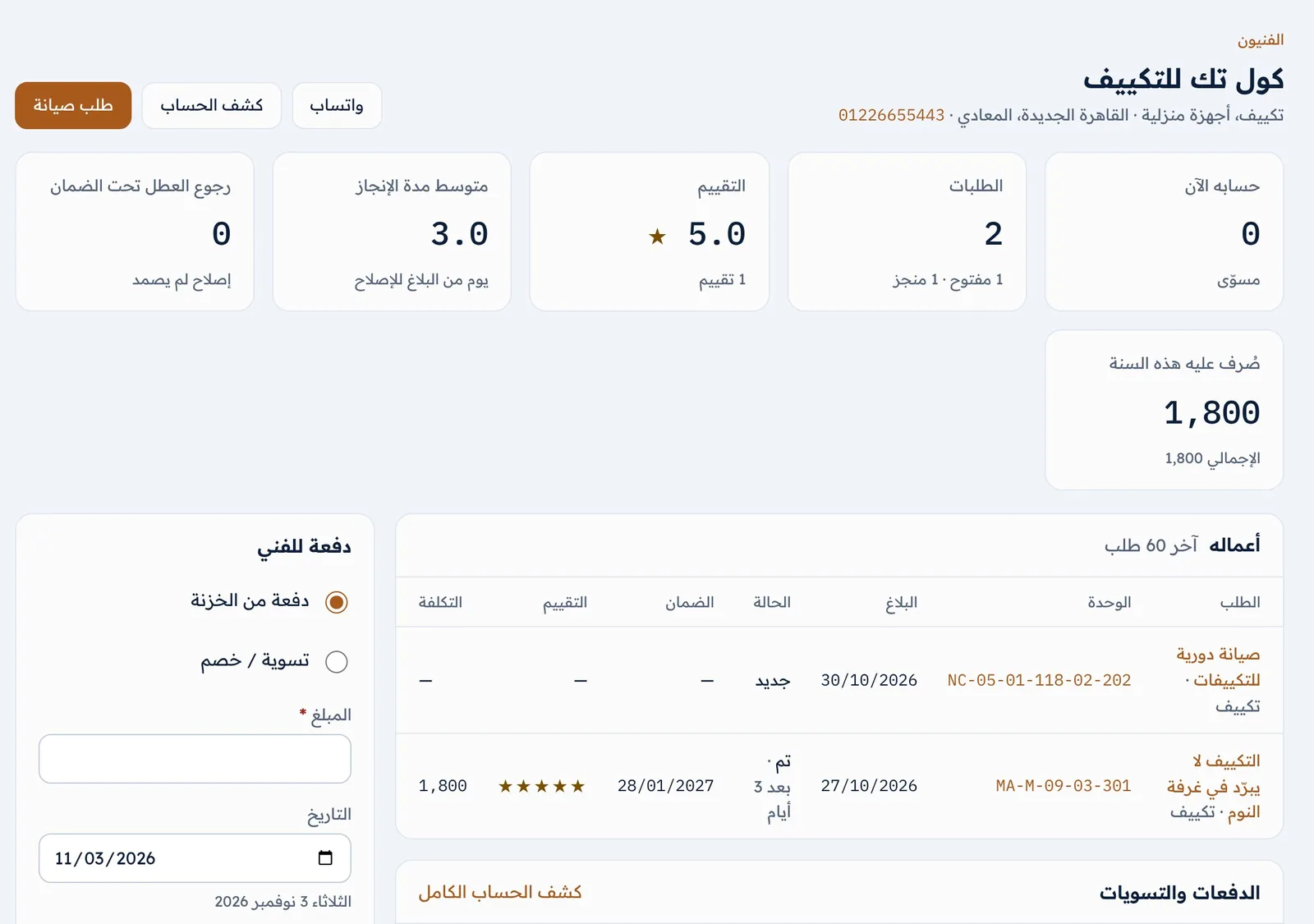
Paying a technician (Manager and Accountant): on the “Technician payment” card, choose “Payment from cash box” with the method, cash box and transaction number, or “Settlement / deduction” with a reason. Paying more than is due requires explicit confirmation that it is an advance. The account equals deferred jobs plus the previous balance, minus payments and settlements. A technician the office no longer uses is suspended: they stop appearing on new requests, but their record stays.
Accounts
09Owners and commissions
The program works out each owner’s balance from the rent actually collected on their units, after commission, recoverable expenses and what has already been transferred — so the owner statement is ready any day, with no manual tallying. This section is for the Manager and Accountant. To add an owner, go to “Owners” → “New owner”: name, phone, email and national ID, “Bank account / IBAN / wallet number”, the “Owner’s monthly transfer day” (the dashboard reminds you once it passes), their agent or whoever collects for them, address and notes.
| Contract type | How it works |
|---|---|
| Commission (management and marketing) | The office lets and collects on the owner’s behalf and takes a percentage of the rent collected. The rent collected is credited to the owner; the office’s income is the commission. The percentage can be deducted automatically from each collection, alongside a letting commission on every new lease and a renewal commission. |
| Sublet | The office rents the unit from the owner at a fixed rent per period and lets it on its own account. All the tenants’ rent is office income, and its profit = collected − the owner’s rent. This type needs an end date. |
The owner contract: go to “Owner contracts” → “New owner contract” (Manager). One contract per owner can cover one unit or several:
- 1 Owner and contract type: the owner, start, end (blank = open-ended, commission contracts only) and the type.
- 2 Terms: the commission percentage and whether it is deducted automatically, plus the letting and renewal commissions; or the owner’s rent, its cycle and the amount for each unit.
- 3 Units: select the owner’s units from a searchable list.
- 4 Extra terms: the transfer day, the owner’s expense approval limit, and what is deducted from the owner — then click “Create contract”.
From the contract page you can print it, add or remove units, “Renew contract” with one that starts the next day (with a higher owner rent or a new commission rate), and “End contract” with a date and reason. The deposit stays with the office unless the lease says “Deposit held by owner”.
The owner page shows rent collected (commission), fixed rent (sublet), recoverable expenses and commission, and the balance now: due to the owner (to be transferred), due from them, or settled. Then comes the statement by month and unit, the breakdown by unit, and scheduled items not yet due.
The owner’s entitlement is calculated from actual collections, not from charges — so if a client payment is cancelled, the owner statement corrects itself.
- 1 On the owner page, click “Monthly statement and transfer” and choose the month: the opening balance, every entry in it, and the closing balance.
- 2 Print it or save it as a PDF, or send the owner a summary with “Send summary by WhatsApp”.
- 3 On the “Transfer to owner” form, the balance appears as the suggested amount. Set the date, method, the cash box it left from and the reference, then record the transfer.
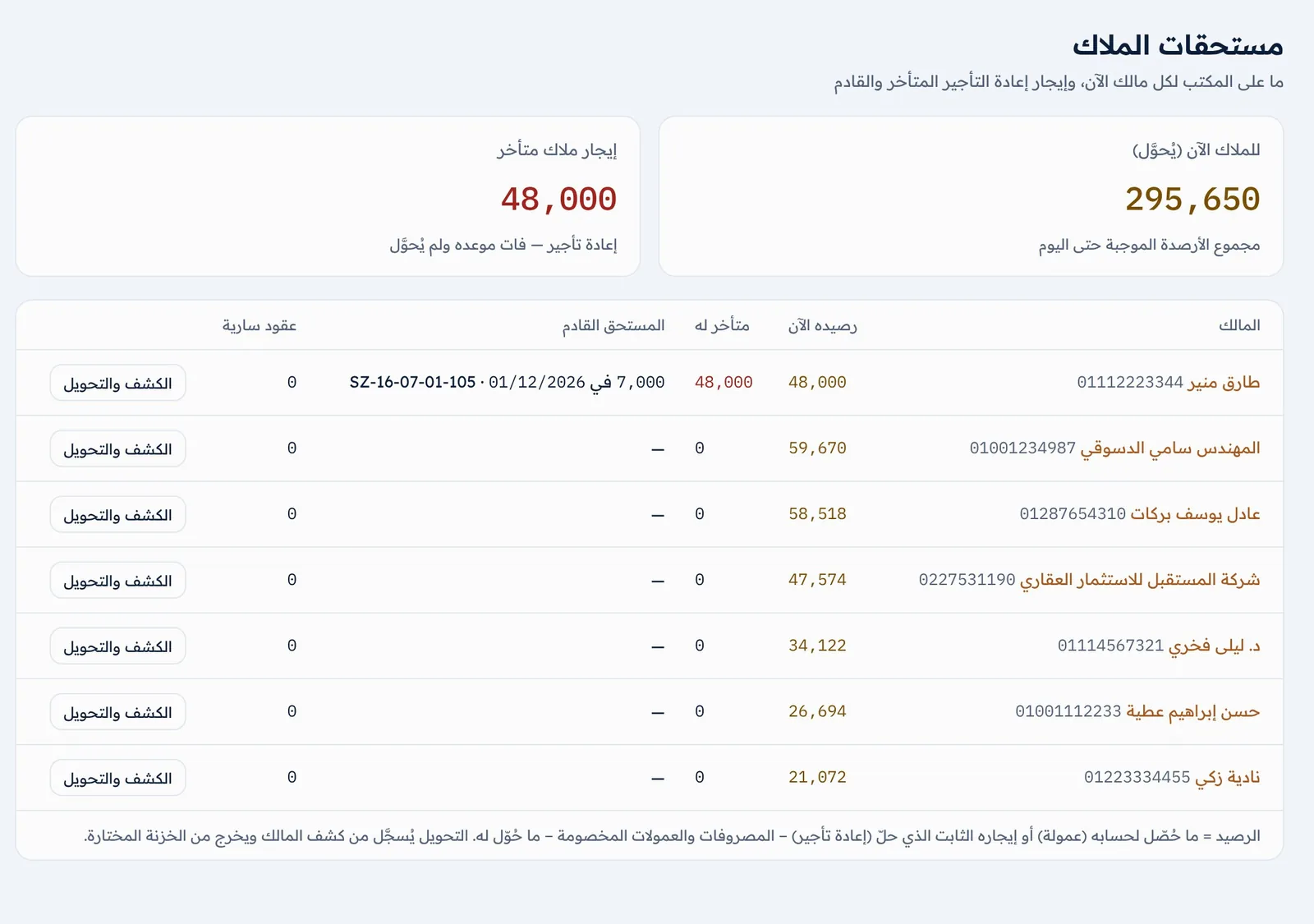
- Transferring more than the balance needs confirmation that it is an advance. If the office’s commission is not automatic and has not been recorded, the system warns you before the transfer so the full rent isn’t sent by mistake.
- For adjustments (adding to or deducting from their account), use the “Transfer to owner / adjustment” form — a description is required.
- “Owner dues” shows what the office owes each owner now, plus overdue and upcoming sublet rent, with a “Statement and transfer” button per owner. The dashboard flags overdue owner rent, transfers due this month and owner contracts ending soon.
- “Commissions” lists commissions coming in to the office (from an owner or client) and going out (to a broker or another party), whether each is due or paid, and the net for the year. Activating a lease automatically creates the letting or renewal commission from the owner and the agent’s commission (their rate × the office’s commission on the lease). The Manager records anything else by hand, with the option of deducting it from the owner’s dues. Tenant commission is recorded as a charge on the lease and does not appear on this page.
10Statements and reports
A statement for any party and any period in one click, and reports that give the manager a clear picture of occupancy, profit, commissions and deposits held.
- 1 Under “Statements”, choose the party type: tenant (all roles), or owner or technician (Manager and Accountant).
- 2 Find the party by searching on name or phone.
- 3 Choose the period — from the start, this month, last month, the last 3 months, this year, or a custom range — then click “Show statement”.
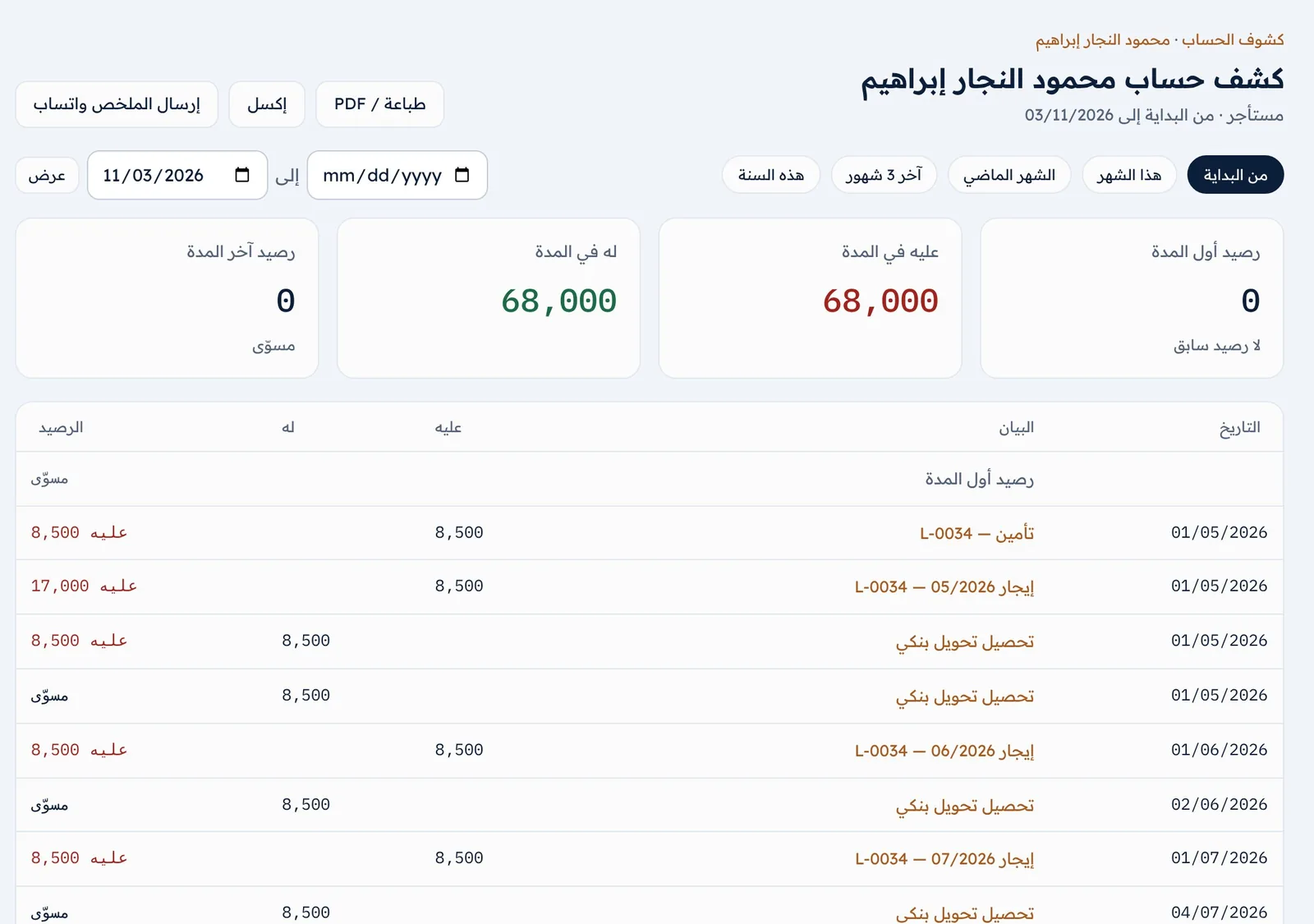
The statement shows the opening balance, due from in the period, due to in the period and the closing balance, followed by every movement with its date, description and running balance, labelled due to, due from or settled.
- Tenant: due from them are the charges that have fallen due; due to them are their payments. A deposit refund is shown for information and does not change the balance.
- Owner: due to them is the rent collected on their behalf, or their fixed rent that has fallen due; due from them are the commission, deducted expenses and what has been transferred to them.
- Technician: due to them are the jobs they have done; due from them are payments made and settlements.
- Output: “Print / PDF” with the office letterhead, party and period; “Excel”; and “Send summary by WhatsApp” with the balances in the message.
| Report (Manager and Accountant) | What it shows |
|---|---|
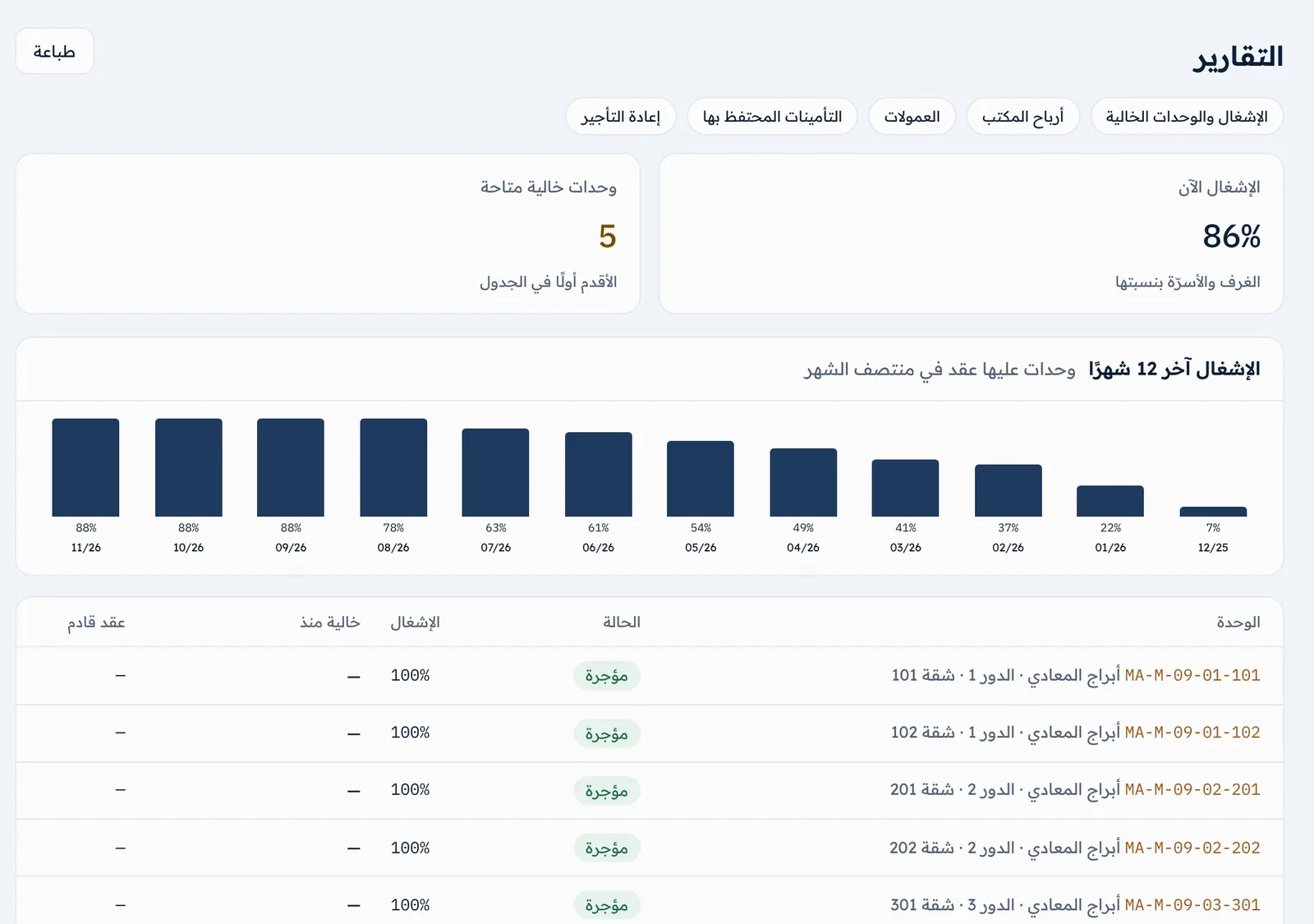
| Occupancy and vacant units | The occupancy rate now, available vacant units (longest vacant first) and since when, upcoming leases, and the occupancy curve over the last 12 months. |
| Office profit | For a month you choose: net from units (commissions + sublet margin + services and fines − expenses), general office expenses, the office’s net profit, and a breakdown per unit. |
| Commissions | Monthly commission from owners, letting and renewal commissions, tenant commission collected, employee and broker commissions, and the net. |
| Deposits held | Deposits held by the office (held in trust, not income), what has been passed on to owners, and ended leases whose deposit has not been settled. |
| Sublet | Profit or loss on each unit rented from an owner over the last 12 months: collected from occupants, the owner’s rent, expenses and the net. |
| Screen | What is exported to Excel |
|---|---|
| Rent arrears | All arrears, in detail. |
| Rent collection | Collections for the selected month. |
| Expenses | Expenses for the selected month. |
| Owner page | The owner statement, for the month or in full. |
| Statement | Any party’s statement for the selected period. |
| Asset inventory | The inventory with the filters applied. |
| Settings | A copy of the office’s data: one file with a sheet for each type of data (Manager). |
Every report has a print button. Export is available to the Manager and Accountant, and the files are laid out right-to-left.
Administration
11The system on your phone
On a phone the system becomes a full app interface: a bottom navigation bar, a button for the key actions, and tables that turn into cards. You can install it on the home screen straight from the browser — no app store involved.
Installing on Android:
- 1 Open rent.fadx.ae in Chrome and log in.
- 2 Tap “Menu” in the bottom bar, then “Install app” — or accept the browser’s prompt.
- 3 An “إيجار” icon appears on the home screen and opens the program full-screen.
Installing on iPhone and iPad:
- 1 Open rent.fadx.ae in Safari and log in.
- 2 Tap the share button, then choose “Add to Home Screen”. The program shows these instructions too, the first time you use it.
On a computer you can install it the same way from Chrome or Edge. On Android, a long press on the icon shows shortcuts: collect rent, new lease, rent arrears and maintenance request.
- Bottom bar: Home, Leases, the + button, Collection and Menu. It adapts to the role — a viewer, for example, sees Clients in place of the + button.
- The + “New action” button: a sheet slides up from the bottom with the actions your role allows — collect rent, new lease, new client, expense, maintenance request, new unit.
- Menu: every section of the program, along with your name and role, dark mode, the install button and logout.
- Tables become easy-to-read cards, phone numbers are tap-to-call, and WhatsApp buttons open the app directly.
- The Save button stays visible at the bottom of long forms, so there is no need to scroll to the end.
Internet connection and privacy: the system needs an internet connection because it shows figures straight from the server, so they are always correct. Only the design and fonts are stored on the phone — none of the office’s data is kept on the device, so if the phone is lost or someone else uses it, they will not find your figures. When the connection drops, you see a “No internet connection” page with a “Try again” button.
Every update that is released reaches all your team’s devices automatically the next time the program is opened — no manual updating needed.
12Subscription and data security
All plans are annual and include every screen of the program and unlimited users. They differ in the number of active leases and the storage for attachments. Current prices are shown on the “Subscription” page.
| Plan | Active leases | Attachments (ID photos and documents) |
|---|---|---|
| Normal | Up to 1,000 leases | Not available |
| Pro | Up to 1,000 leases | Up to 5 GB |
| Max | Unlimited | Up to 20 GB |
| Free trial | Unlimited, for 30 days | Up to 2 GB |
- 1 Under “Subscription” (Manager), check your current plan and its expiry date, your number of active leases and the storage used.
- 2 Transfer the plan fee using one of the payment methods shown on the page.
- 3 Choose the plan and payment method, enter the transaction number, then click “Send request”. The transfer is matched and the subscription activated within one working day.
- During the trial: the paid plan starts when the trial ends, so you lose none of its days.
- Renewing or moving to a lower plan: it starts when your current subscription ends.
- Upgrading to a higher plan: immediate — you pay the difference after the value of your remaining days is deducted.
- Two weeks before the subscription ends, a renewal reminder appears on every page.
When the subscription ends, your data is not erased. The program becomes view, print and export only until you renew, and a banner on every page says so.
How your office’s data is protected:
- Full isolation: each office’s data is isolated at the database level itself — another office cannot see it even by guessing its links.
- Defined permissions: each employee has a role that sets what they see and do, and ID photos and personal documents are for the Manager and Leasing agent only.
- A trail for every entry: financial entries are never deleted — they are cancelled with the reason, who cancelled them and when. Every operation is recorded in an audit log held by FADx.
- Passwords: encrypted and known to nobody, not even the office manager, with a minimum of 10 characters. Suspending an employee or changing a password closes their open sessions immediately.
- Technical support: when you ask for help, the FADx team views your office’s data read-only, without ID photos or personal documents, and that access is logged.
- The connection is always encrypted, and the database is backed up daily.
- Your data is yours: from “Settings” → “A copy of all your data”, download a full Excel copy at any time — even after the subscription has ended.
Help
13Frequently asked questions
I can’t find the unit on the new lease form. Why? Either its status is “Maintenance” or “Suspended” — set it back to “Available” — or the space is let, or reserved by a draft, for the same period, in which case it shows greyed out with the reason. Try dates after the current lease ends.
I recorded a payment wrongly. How do I fix it? Cancel the payment from its page with a reason (Manager and Accountant), then record it again with the right details. The charges reopen, and the cash box and owner statement are corrected automatically.
The tenant paid more than was due. Where did the rest go? It is allocated to upcoming charges as advance payment, and anything beyond all the lease’s charges stays as “client credit” on their page — to be applied to later charges or refunded.
Why wasn’t a late fine applied? Fines are not applied automatically. Enable them in the settings, then click “Apply late fines” on the arrears screen. A fine is applied only once per overdue rent charge.
How do I waive a fine or give a tenant a discount? To waive a fine, cancel its charge from the lease page. For a discount, use the “Discount” button next to the charge and set who bears it.
An employee can’t see owners or cash boxes. Is that a fault? No — those are Manager and Accountant permissions. Change the employee’s role on the users page if you need to.
Does the program work offline? No. Figures come straight from the server so they are always correct, and to protect your data on the phone.
What happens if I don’t renew? All your data stays, and the program becomes view, print and export only until you renew.
Support and contact — Egypt: +20 101 452 2566 (phone and WhatsApp) · UAE: +971 50 381 8923 · Saudi Arabia: +966 55 913 0767 · Email: info@fadx.ae
14Glossary
The key terms used in the system and in this guide, with what each means inside the program.
| Term | Meaning |
|---|---|
| Let space | The whole unit, a room, or a bed in a room. |
| Charge | An amount due on a set date: rent, deposit, commission, services, a fine, damages. |
| Draft | A saved lease that reserves the space, with no charges until it is activated. |
| Grace period | The days after the due date before a charge counts as overdue. |
| Shared part | The part of the rent not split among co-tenants; it is attributed to the main party. |
| Main party | The tenant answerable to the office for the lease. |
| Deferred deposit | Part of the deposit billed at a date after the lease starts. |
| Client credit | What the client has paid over and above all their charges. |
| Commission contract | The office manages the unit on the owner’s behalf for a percentage of the rent collected. |
| Sublet | The office rents from the owner at a fixed rent and lets on its own account. |
| Due to / due from | “Due to” is what the party is owed by the office; “due from” is what they owe the office. |
| Cancellation | Voiding a financial entry with a reason while keeping it on record — the alternative to deleting. |
| Warranty | A period during which the technician must fix the same fault at no new cost. |
| Settlement | The document settling the deposit and charges at the end of a lease, signed by both parties. |
Still need help?
Send us your question and we will reply with the steps.