
01Introduction
FADx Salon is cashier and management software for men’s barbershops and skincare: sell a service with one press, know every barber’s commission, and follow your day’s revenue and product stock from one screen.
- A button-based cashier: services are big buttons, the barber is chosen once at the start of the sale.
- Automatic barber commission: one rate on services, one on products, and settling up from the till in one click.
- The receipt on the client’s WhatsApp instead of printing — or printed if you prefer.
- A special price per client: the software remembers the last price and reminds you on the next visit.
- Stock in its place: the quantity beside each product, an alert when it runs low, and an “Add stock” button.
The software runs in simple mode by default, showing only what the shop needs. Your accountant switches on “accountant mode” for the full ledgers and reports.
02Starting up
Open the software from the “Run FADx Salon” icon on the desktop, type your username and password and press “Log in”. Under the logo it shows “connected to server” when everything is ready.
The first time, a small card in the corner walks you through these five steps. Do them in order:
- 1 Add your services from “Services & products”: haircut, beard, facial… with their prices.
- 2 Add your barbers from “Barbers”: the name and commission rate.
- 3 Add clients from “Clients”: name and phone (optional, and can be added later).
- 4 Your first sale from “Cashier”.
- 5 Follow your day from “Today”.
The sidebar holds nine screens: Today, Cashier, Invoices, Clients, Services & products, Barbers, Reports, Cash & accounts, Admin. At the top of every screen: “Help F1” for the open screen, “Refresh”, a language button, and “Log out” to switch user.
03The “Today” screen
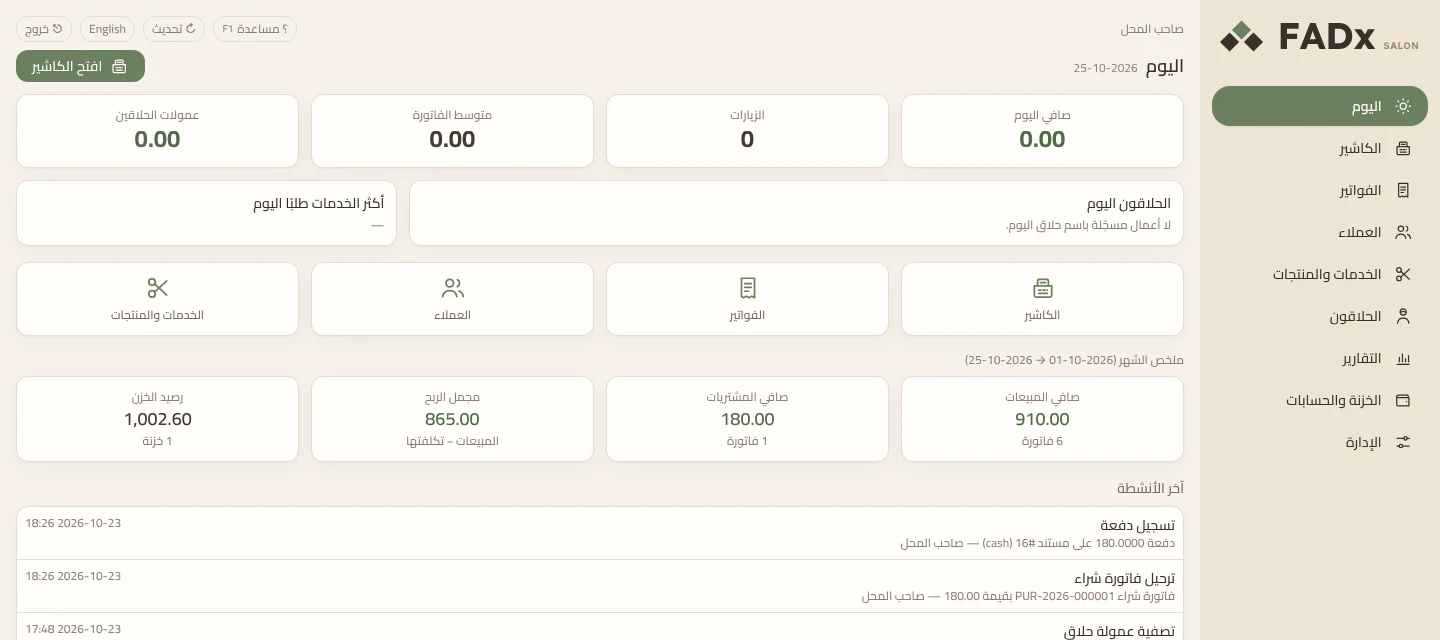
“Today” is the first thing you see after logging in: the shop’s day at a glance, with an “Open cashier” button at the top.
| Card | What it shows |
|---|---|
| Net today | Today’s sales after returns |
| Visits | Today’s invoice count |
| Average ticket | What a client pays per visit on average |
| Barber commissions | Today’s total commissions |
| Barbers today | Per barber: visits, services, revenue, commission |
| Most requested | Today’s services ranked by count |
| Running low | Products running low — appears only when something is short |
| The month | Net sales, purchases, gross profit, till balance |
| Latest activity | What happened and who did it |
The four shortcuts in the middle (Cashier, Invoices, Clients, Services & products) can be reordered by dragging.
04The cashier
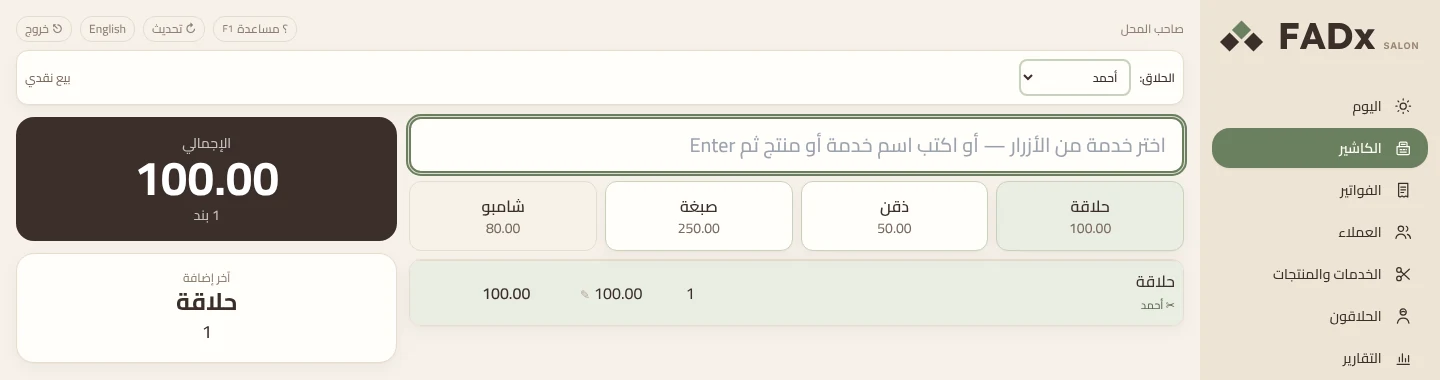
The barber sits at the top, services are buttons, and the total is in large type. An ordinary haircut sale takes four steps: barber, service, F12, Enter. No “open drawer” or session needed before selling.
- 1 Pick the barber from the “Barber” list at the top. Every service added after that is recorded under him with his commission.
- 2 Press the service button (haircut, beard…). For products: type the product name in the big box then Enter.
- 3 The client (optional): press F6 and pick. Without one it records a “cash sale”. With one, the receipt goes to WhatsApp and their special price is saved.
- 4 Press F12 to take payment. Enter on an empty field = cash for the full amount. For card or transfer, type the amount in its field; the amount can be split across methods.
- 5 The client’s change shows in large type when they pay more than the total. Press Enter for a new sale.
A client served by two barbers (a haircut from one, colour from another)? Select the line with the arrows then press F10 to change that line’s barber alone. The barber’s name shows under each line with a ✂ mark.
Editing a price: click the line’s price (marked ✎), type the new price and press Enter. If a client is selected, that price is saved for them after payment. On their next visit, when you add the same service, a prompt appears: “this client’s last price: 80.00”, with an “apply it” button.
The special price is never applied automatically — the choice is yours each time. A percentage discount on a line is F3, for whoever has the discount permission.
Credit sales: pick the client (F6), then in the payment window (F12) type what they paid or leave it empty, and press the orange “on account” button. The rest is recorded as debt and appears in their balance. No client, no credit sale.
Mistakes and returns: recorded the wrong service? Press “Wrong — void this invoice” in the “Sale complete” window and write the reason. The invoice is fully reversed: the amount leaves the till and the barber’s commission is cancelled. Voiding applies to today’s invoice that you issued. A client returned a product? Press F7, type the invoice number then the returned quantity.
| Key | Action |
|---|---|
| Enter | Add what is typed in the search box |
| F2 | Line quantity |
| F3 | Percentage discount on the line |
| F6 | Select the client |
| F7 | Return or void by invoice number |
| F8 | Open the cash drawer (if connected) |
| F10 | Change the line’s barber |
| F12 | Take payment and finish the sale |
| Esc | Delete the selected line — or close the open window |
| ↑ ↓ | Select a line |
05Clients
Add a client by name and phone from the “New client” form, and search later by name or number. The phone is what the software sends the WhatsApp receipt to, written in local format.
- The client file: click the name to see visits, what they paid, which barbers served them, and to edit their details.
- Outstanding balance: what the client owes from credit sales. “Statement” beside it shows the movements by date.
- Collection: “Invoices → collect from client” — pick the client, till and amount; it is applied to their open invoices oldest-first.
06Services, products and stock
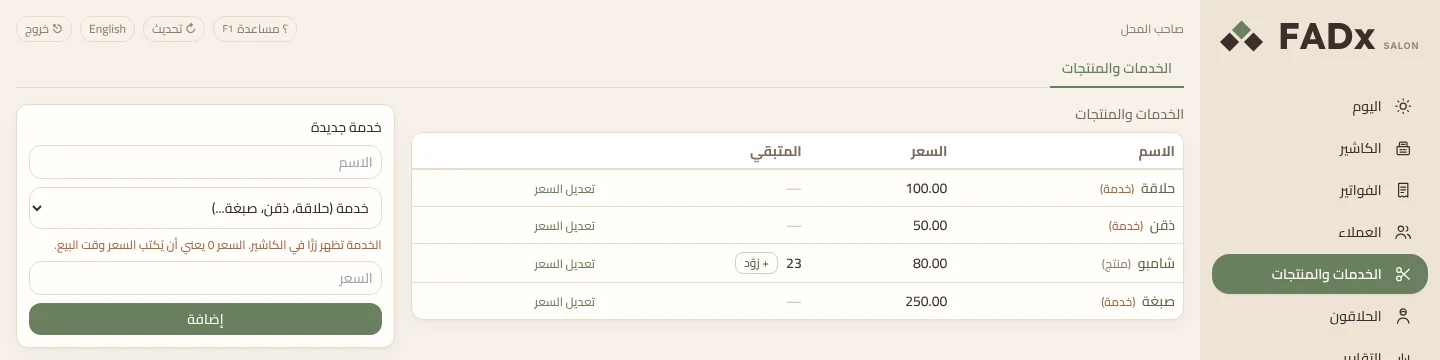
Everything the shop sells lives here: a service (haircut, beard, facial) with no stock, and a product (shampoo, cream, wax) with a quantity.
- 1 In the “New service” form, type the name.
- 2 Pick the type: “service” (the default) or “product sold with stock”.
- 3 Type the price and press “Add” — the service appears as a cashier button at once.
A price of 0 means the price is typed at sale time (for a service whose price varies). To change an existing price, press “Edit price” in its row.
The “remaining” column shows each product’s quantity and turns red at the reorder point, or at 3 if the product has none set. A red bar above the table lists products running low — the same alert appears in “Today”. Every sale decrements stock automatically, and every return puts it back.
- 1 Press “Add stock” beside the product.
- 2 Type the quantity and the unit cost.
- 3 Choose “paid from the main till” if you paid now, or “on account (not paid)”.
- 4 Press “Add stock” — the quantity goes up at once.
Behind “Add stock” the software records an ordinary purchase invoice under “general supplier”, so the product’s profit comes out right in reports. If the till does not hold enough, it refuses before recording anything.
07Barbers and commission
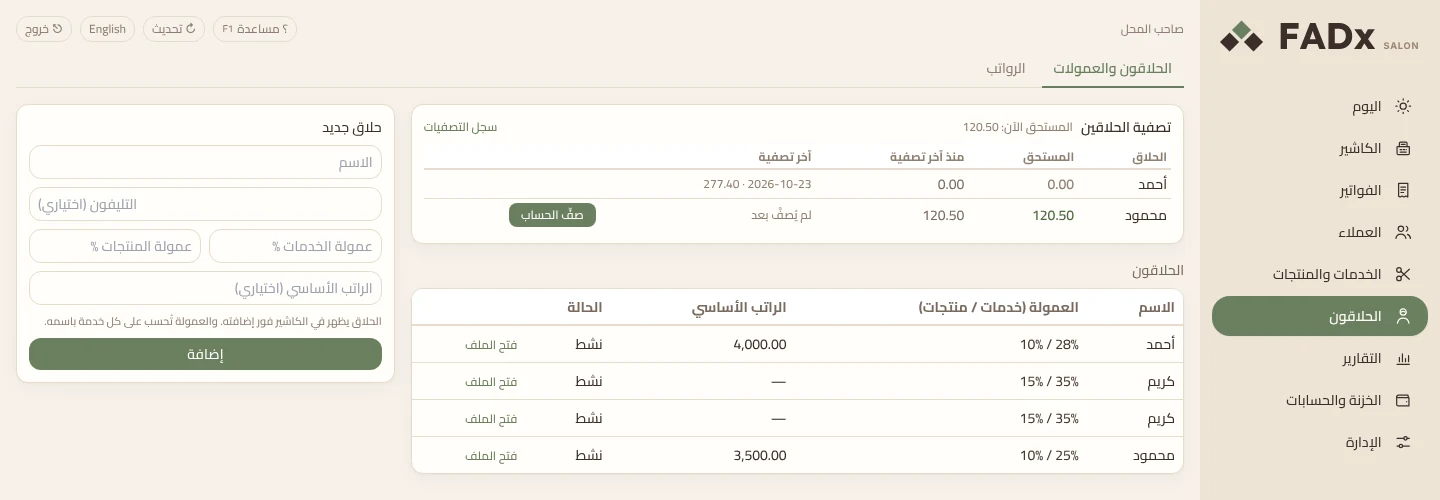
A barber is added by name with his two commission rates in a single form, and appears in the cashier at once. The commission is calculated on its own for every line under his name.
- 1 In “New barber”, type the name and phone (optional).
- 2 Type the services commission % and the products commission % (say 30 and 10).
- 3 The base salary is optional — leave it empty for a barber on commission only.
- 4 Press “Add”.
To change a barber’s rate, click it in the table and type the new one. The new rate applies from today; earlier invoices keep their commission.
The “Settle barbers” card at the top shows, for each barber: what is owed now, what they earned since the last settlement, and the last settlement.
- 1 Press “Settle up” in the barber’s row. The full amount owed is filled in, and can be changed to pay part of it.
- 2 Press “Pay out”. The amount leaves the till and is recorded as an expense under “barber commissions”.
- 3 Never more than what is owed: the excess is an advance recorded from the barber’s file.
- 4 An invoice voided after settlement has its commission deducted from the next settlement alone.
- 5 The “settlement log” shows everything paid out, when, and from which till.
An advance: “Barbers → open file”, then the amount and the till. It is deducted from his salary later. Monthly salary: the “Salaries” tab — pick the month and till and pay the run; base salary, deductions and advance instalments are calculated per barber.
Commission is paid from “Settle barbers”, not from the salary — so it is never paid twice.
08Invoices and the till
| Tab | When to use it |
|---|---|
| Daily | All invoices for a period: search by number or name, reprint an invoice, or open it for details |
| Returns | A return by client and item, or against a specific invoice |
| Collect from client | A credit client paying what they owe |
A posted invoice is never deleted: it is voided (for today’s invoice) or returned against, and the original stays in the record.
From “Cash & accounts → Till” you see each till’s balance and record what comes in or out other than sales: pick the type (an expense such as rent, electricity or supplies; “other income”; or “transfer between tills”), then the till and expense category, then the amount and a short note, and press “Record”.
Buying goods for resale is not recorded here, but with “Add stock” on the products screen — so it enters stock and profit is calculated.
09Reports
Pick the section from the top tabs, then the report, then the period (from — to). Every report prints or saves to PDF or Excel from its own buttons. The “search all reports” box finds any report by name.
| Section | What matters most |
|---|---|
| Sales & profit | Quick summary, daily close, sales by period, item and client, collections by payment method, sales by hour of day, unpaid invoices, profitability by period |
| Barbers & commissions | Each barber’s productivity, a line-by-line commission statement, salaries paid, advances |
| Clients | A client statement, client balances, clients who stopped visiting, what each client buys |
| Stock | Low stock, stock balances and value, product movement |
The “barber commission statement” is handed to the barber with his settlement: it carries every invoice number, service and commission. The remaining accounting reports appear in “accountant mode”.
10Admin and settings
| Tab | What you set there |
|---|---|
| Company | Shop name, address and phone (shown on the receipt header), licence and device number |
| Operating settings | Appearance and font size, sales settings, and “cashier screen and WhatsApp” |
| Printing | Printer and paper size (80 mm thermal receipt or A4) |
| Users & permissions | An account for each cashier or barber with fewer permissions than the owner, plus the activity log |
| Backup | A backup in one click, and restoring an earlier copy |
| My account | Change password, and “accountant mode” |
Cashier and WhatsApp live in “Operating settings → Sales”: receipt delivery by “printing” or “WhatsApp instead of printing”, the country code for WhatsApp numbers, and opening the cash drawer with every cash sale if a drawer is connected to the printer. “Require opening the drawer before selling each day” is off by default — switch it on if you want to count and close the drawer daily with opening and closing amounts.
Accountant mode from “Admin → My account”: when switched on, every screen appears — the ledger, financial years, purchase invoices, tax, suppliers and all reports. The mode belongs to the user who switched it on alone, and the books work in both modes.
Language: the English button at the top switches the software to English, and pressing it again switches back to Arabic.
11Common questions and troubleshooting
| Problem | Fix |
|---|---|
| I forgot the password | The owner changes it from “Admin → Users”. If the owner forgot his own: contact support |
| A barber is missing from the cashier | Check he is added under “Barbers” and his status is “active”, then reopen the cashier |
| The receipt did not reach WhatsApp | Check the client’s number in their file, and that WhatsApp is open on the machine. The software opens the chat; sending is one press from you |
| I sold at the wrong price or under the wrong barber | Void the invoice (today’s) and redo the sale. An older one gets a return |
| The “remaining” quantity does not match the shelf | New purchase: “Add stock”. Stocktake correction: “Cash & accounts → Stock → stock adjustment” |
| “Add stock” refused: not enough in the till | Pick another till, or “on account (not paid)” |
| Credit sale refused | Pick the client first (F6). If the client has a credit limit and exceeded it, collect from them first |
| “Could not connect to the server” on the login screen | Close the software and open it from “Run FADx Salon”. If it repeats, contact support |
| A licence message | Send support the “device number” shown in “Admin → Company → Licence” |
Still need help?
Send us your question and we will reply with the steps.