
Chapter 4
Keyboard shortcuts
Open any screen, report or action with two keys. Alt+1 … Alt+9 are ready for everyone, the administrator changes the company shortcuts, and each user adds personal shortcuts for what they use most.
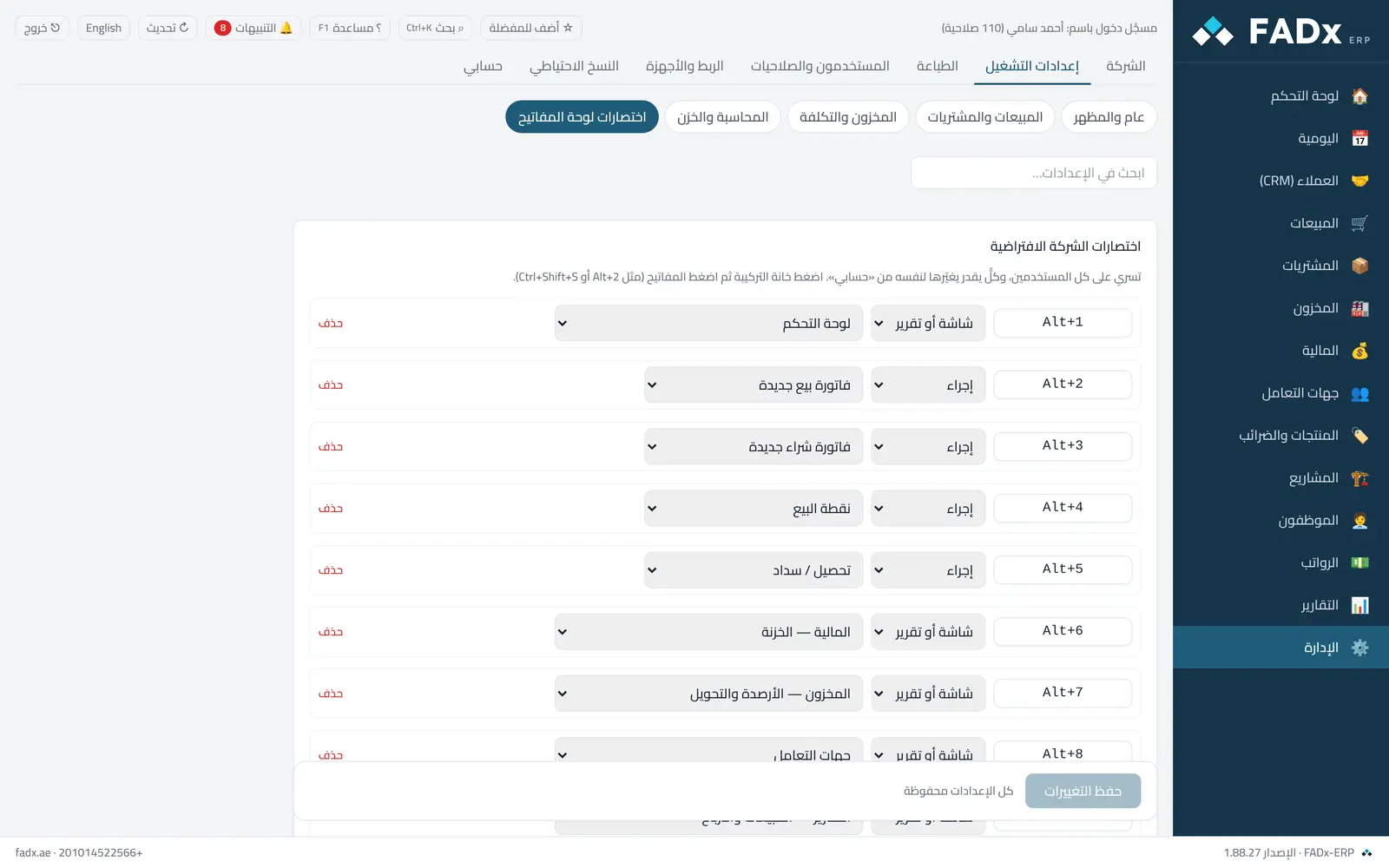
Built-in: Alt+1 dashboard · Alt+2 new sales invoice · Alt+3 new purchase invoice · Alt+4 point of sale · Alt+5 collect/pay · Alt+6 cash · Alt+7 inventory · Alt+8 parties · Alt+9 sales reports. Always fixed: Ctrl+K search and F1 help.
Common workflows
- 1
Your own shortcuts
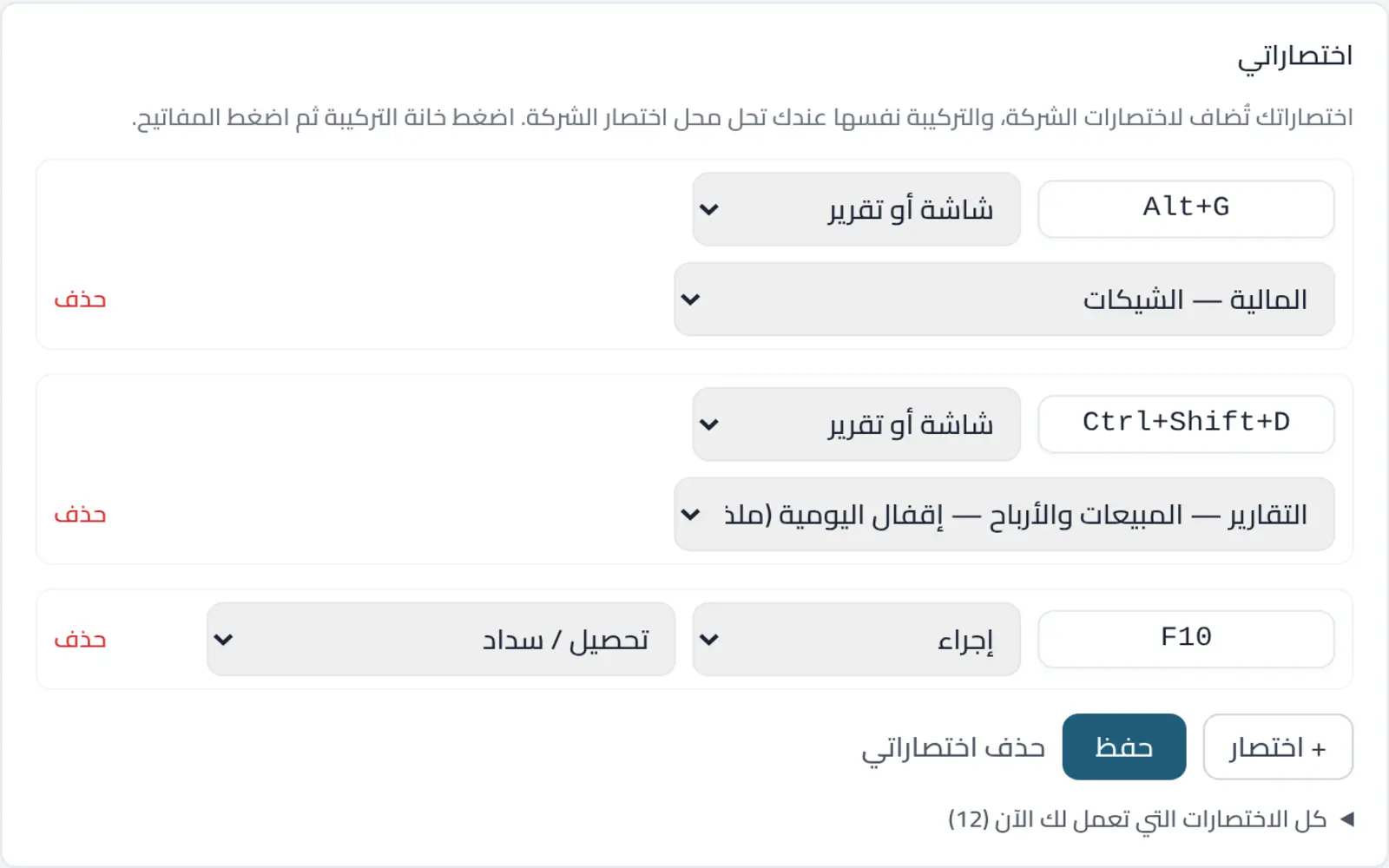
"My account" → "My shortcuts" → "+ Shortcut": click the combination box, press the keys (Alt+G, say), choose "Screen or report" or "Action" and the target, then "Save". It works at once, for you alone.
- 2
Company shortcuts (administrator)
Settings → "Keyboard shortcuts": change the built-in ones or add to them, for all users. "Restore defaults" brings them back as shipped.
- 3
Change a company shortcut for yourself
The same combination in "My shortcuts" replaces the company one for you alone, and "Disable a company shortcut" turns it off for you.
Messages you may see — and what to do
- "Reserved by the program"
Ctrl+K, F1, the point-of-sale F keys, copy, paste and print cannot be used — pick another combination.
- "A letter or digit needs Ctrl or Alt with it"
A letter alone types into fields, so it cannot be a shortcut.
- "Duplicated in the list"
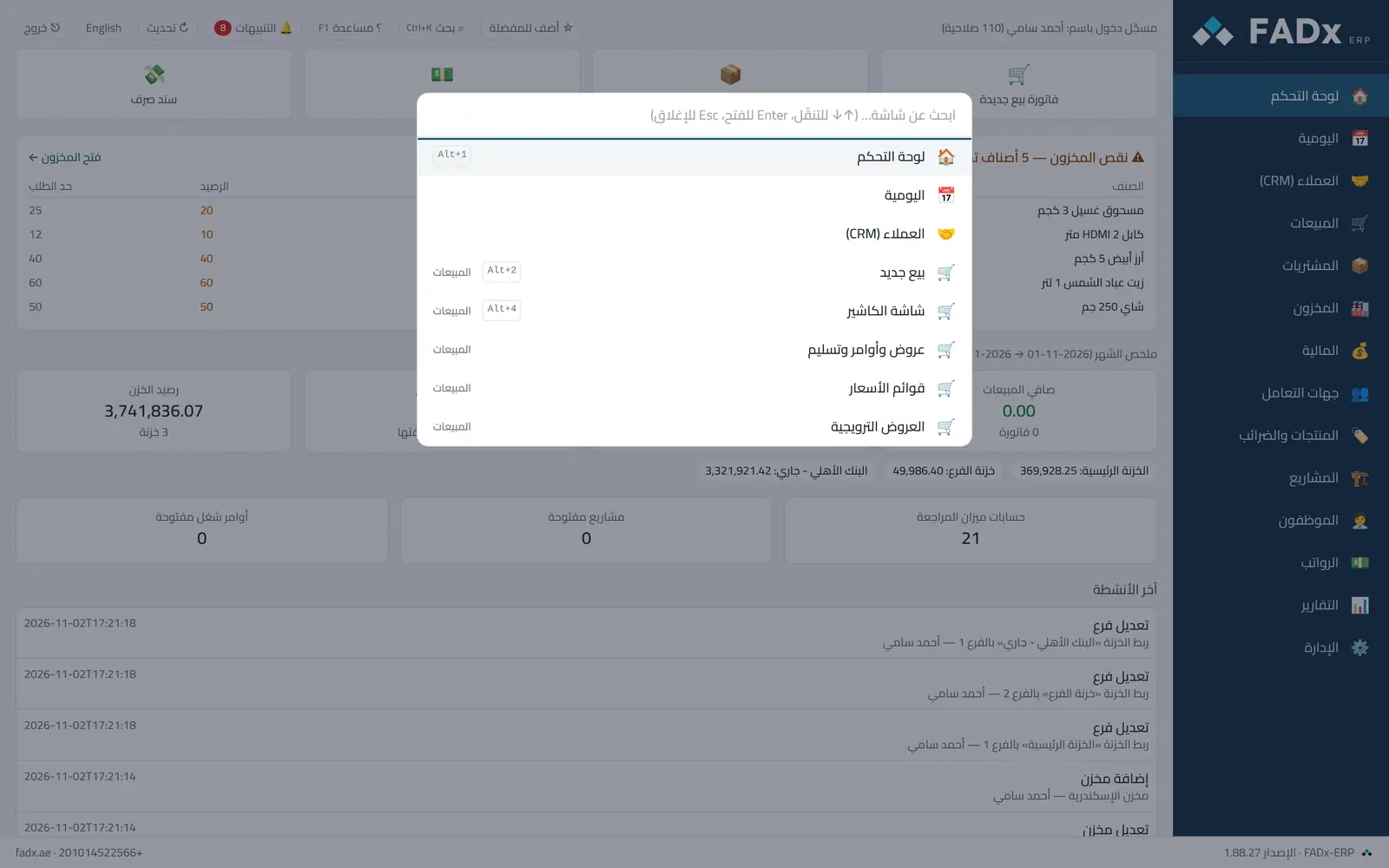
Each combination has one target. A shortcut shows beside its screen in the search (Ctrl+K).
Question not covered here? Message us on WhatsApp and we will answer.
Ask on WhatsApp