
Chapter 3
Password recovery
If you forget your password you recover it yourself with a recovery code you created earlier in "My account" — no email, no internet. Without a code, one request reaches the administrator to set a new password for you.
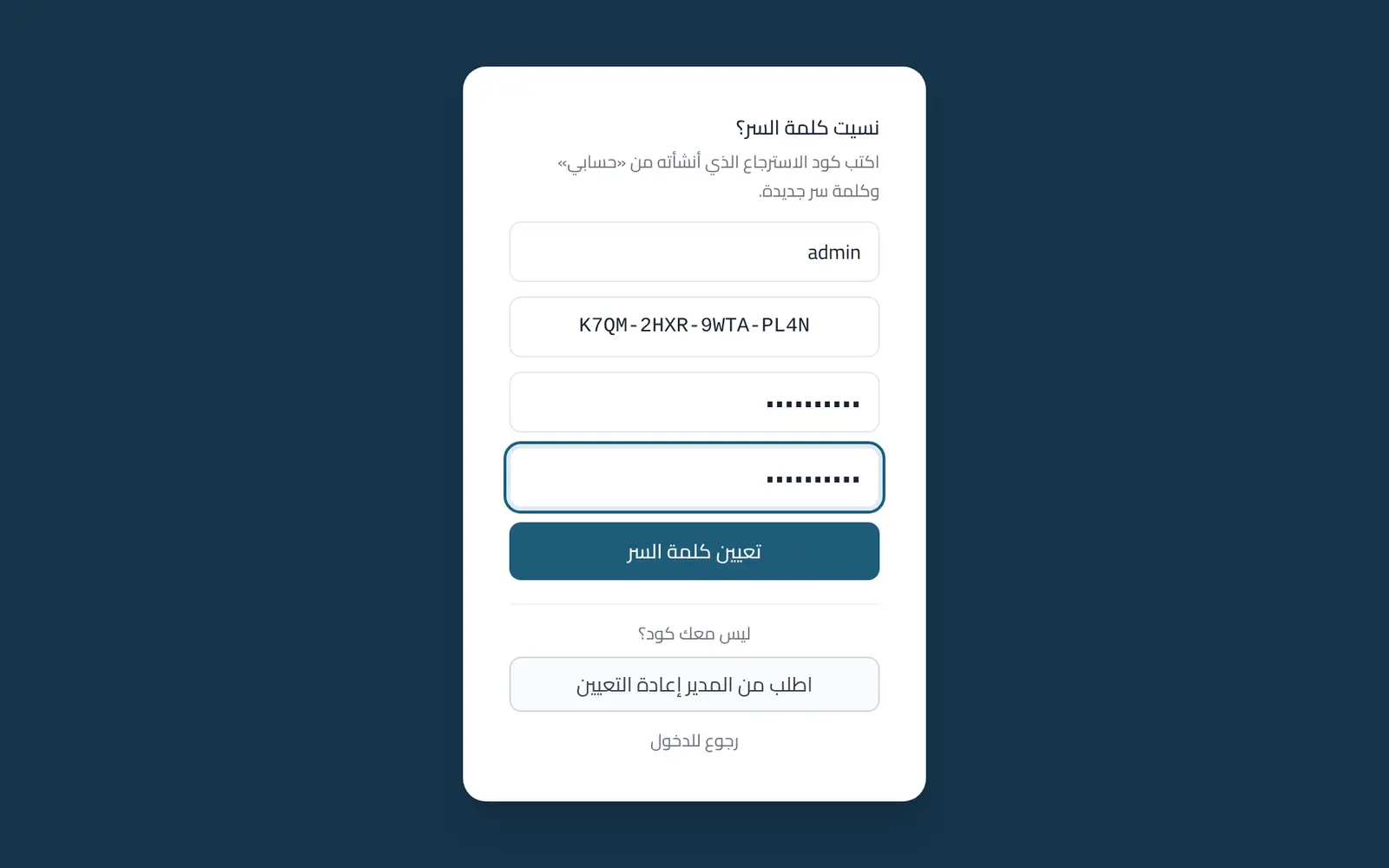
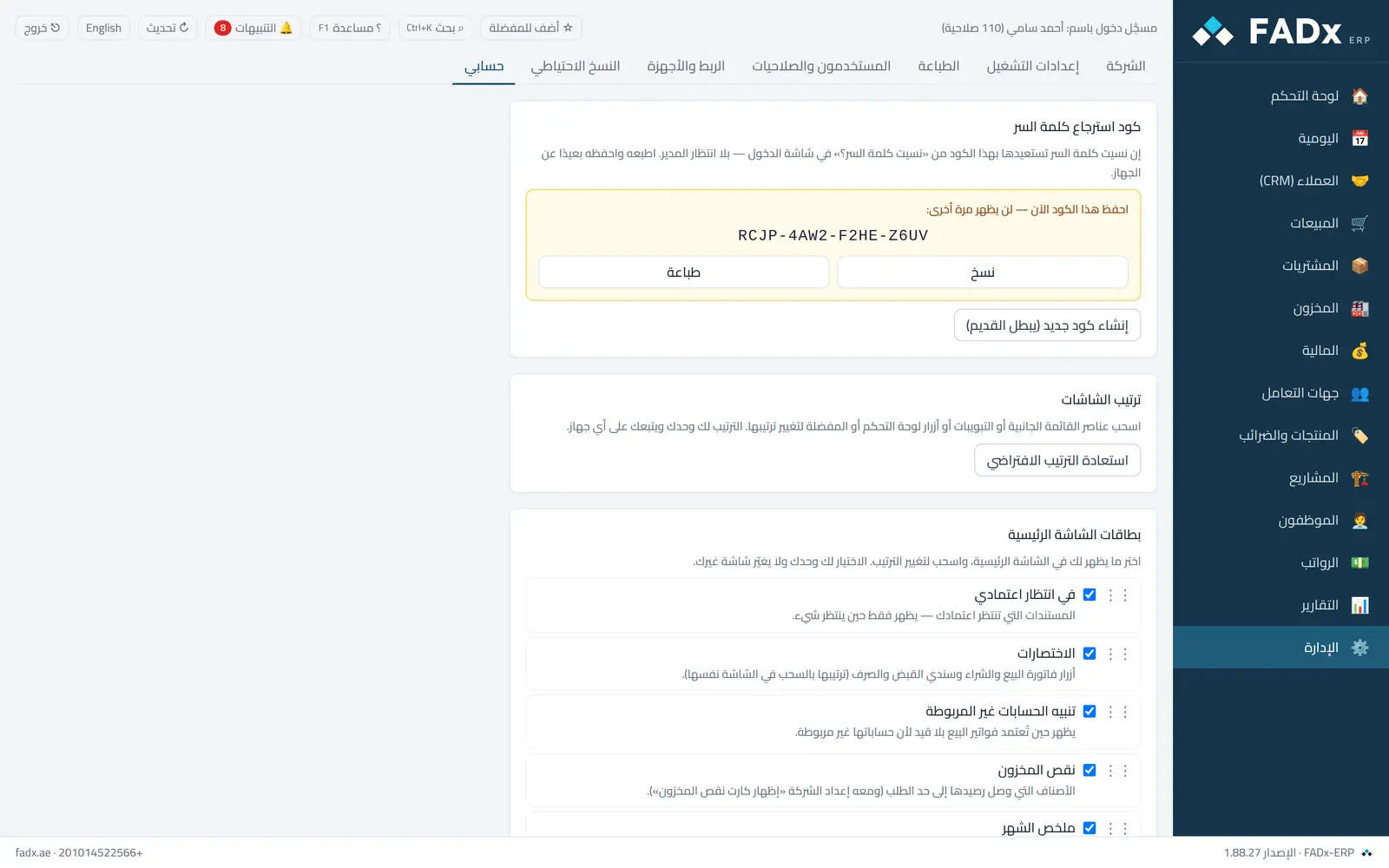
The code is stored only in hashed form — not even the administrator can read it. Creating a new code voids the old one at once, and changing the password signs out sessions open on other devices.
Common workflows
- 1
Create the code once
"My account" → "Password recovery code" → "Create recovery code". The 16-character code is shown once: print or copy it and keep it away from the computer. Until you create it, a quiet bar at the top of the screen reminds you.
- 2
When you forget
On the sign-in screen press "Forgot password?", then enter your username, the code and a new password twice. The code is used up and a new one is shown — save it too.
- 3
Without a code
"Ask the administrator to reset it": an alert reaches the bell of whoever manages users, who sets a password for you under Administration → Users.
Messages you may see — and what to do
- "The username or recovery code is incorrect"
One message on purpose (it does not reveal accounts). Lower-case letters and spaces are accepted in the code.
- "This account is temporarily locked"
Five wrong attempts (password or code) lock for 15 minutes, exactly like sign-in. Wait, or the administrator unlocks it.
Question not covered here? Message us on WhatsApp and we will answer.
Ask on WhatsApp