
Chapter 41
Branches & warehouses
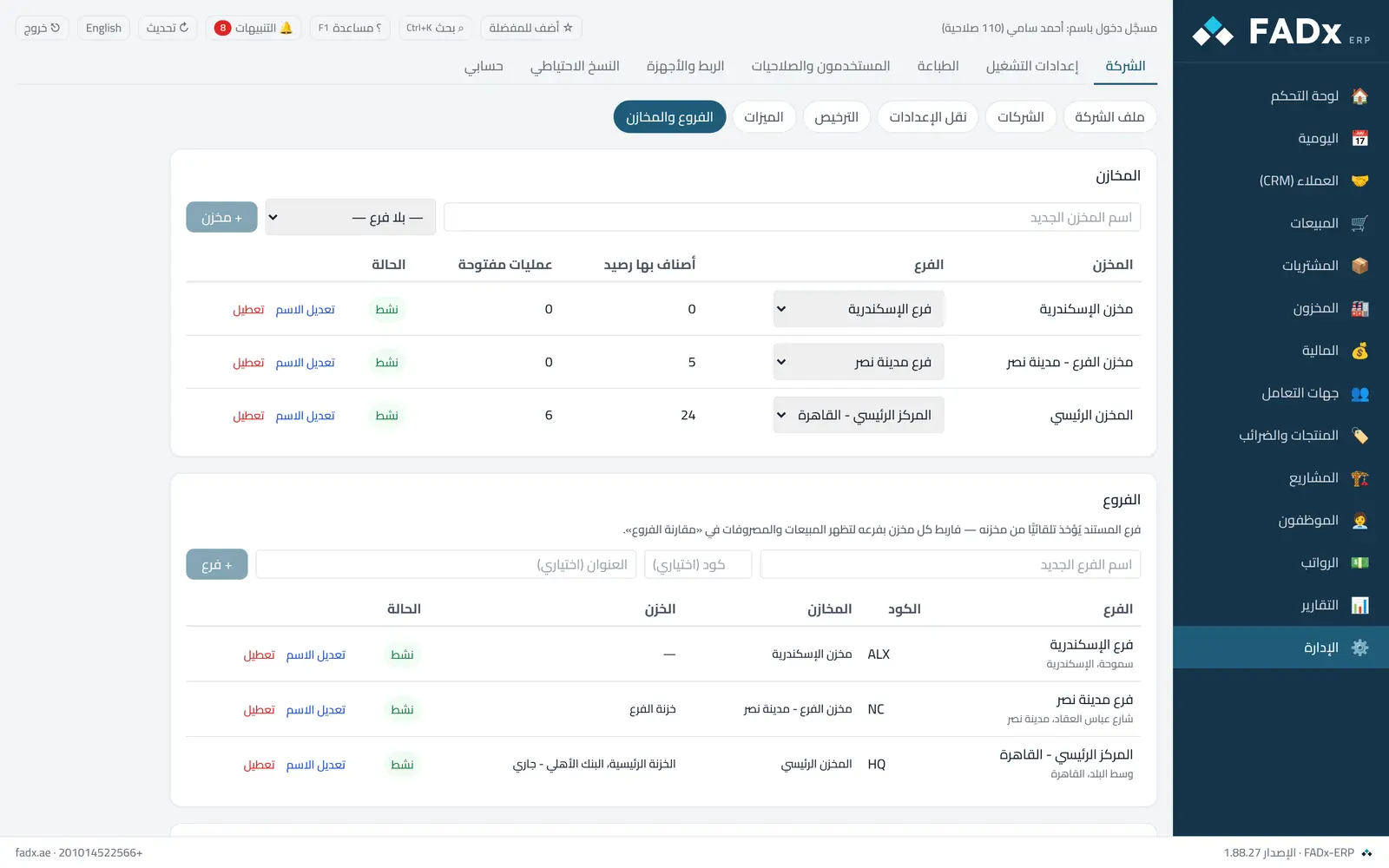
Add new warehouses and branches, rename them, link each warehouse and each till or bank to its branch, and deactivate what is no longer used — from Administration → Company → Branches & warehouses, with every change in the activity log.
Common workflows
- 1
A new warehouse or branch
Type the name (and the branch, for a warehouse) then "Add". It appears at once in the pick lists for sales, purchasing and transfers.
- 2
Linking to a branch
Pick the branch of each warehouse, and of each till or bank in the "Tills and banks" table, so movements appear in the right branch reports.
- 3
Deactivation
A deactivated warehouse disappears from pick lists and no new invoice, order or transfer can be created on it, while its old documents stay as they are. It can be reactivated at any time.
Messages you may see — and what to do
- "A warehouse with stock cannot be deactivated"
Transfer or adjust the stock first, and complete the open receiving and delivery operations.
- "The last active warehouse"
At least one active warehouse is required. A branch with an active warehouse cannot be deactivated before the warehouse is moved or deactivated.
- "A warehouse with the same name exists"
Names are unique regardless of letter case and extra spaces.
Question not covered here? Message us on WhatsApp and we will answer.
Ask on WhatsApp