
Chapter 14
Price lists
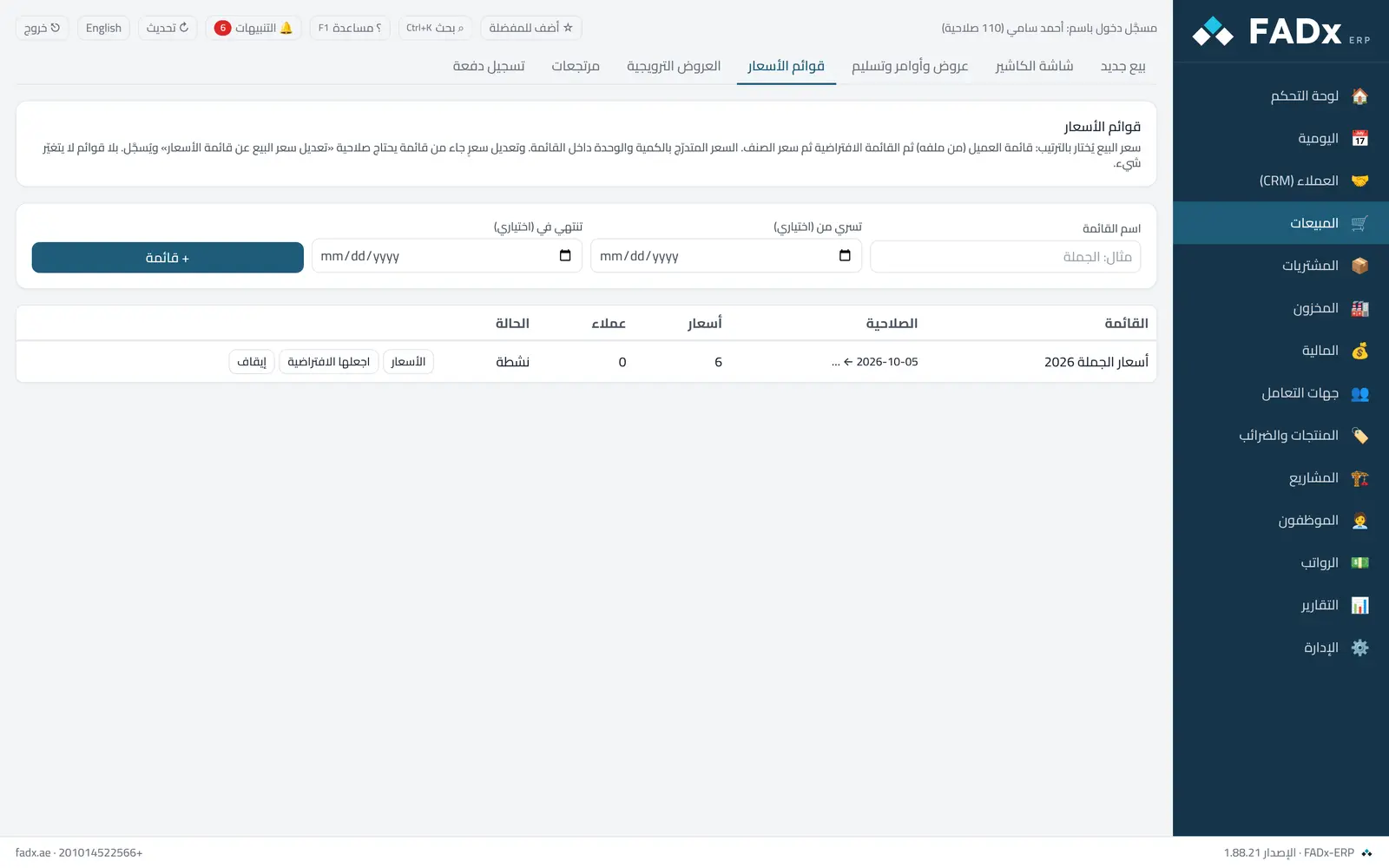
Keep more than one price for the same item: a wholesale list and a retail one, with prices that step by quantity and by unit. The price on a sales line is chosen automatically in this order: the customer's list → the default list → the item price.
Common workflows
- 1
A new list
"+ List" and name it, then "Prices" → item and unit → from-quantity and price → "Save price". A second line for the same item from a higher quantity gives a stepped price.
- 2
Link it to a customer
From the customer file → "Customer price list". Or mark it default for everyone without a list of their own.
- 3
Raising prices
"Adjust all prices %" on the list, or "Copy list" with a markup into next year's list. For many prices at once: Master data → Import → "Price list prices".
Messages you may see — and what to do
- "Changing it needs the price-list override permission"
The line price came from a list; changing it by hand is for permitted users only, and it is recorded in the activity log.
- "Exceeds the maximum allowed discount"
A list discount cannot exceed the maximum discount under Settings → Sales.
- "A price already exists for this unit and break"
Edit the existing price instead of adding a second line.
- The list price does not appear
The list is inactive or outside its effective dates, so the line is priced from the next one in order.
Question not covered here? Message us on WhatsApp and we will answer.
Ask on WhatsApp