
Chapter 8
Activities & follow-ups
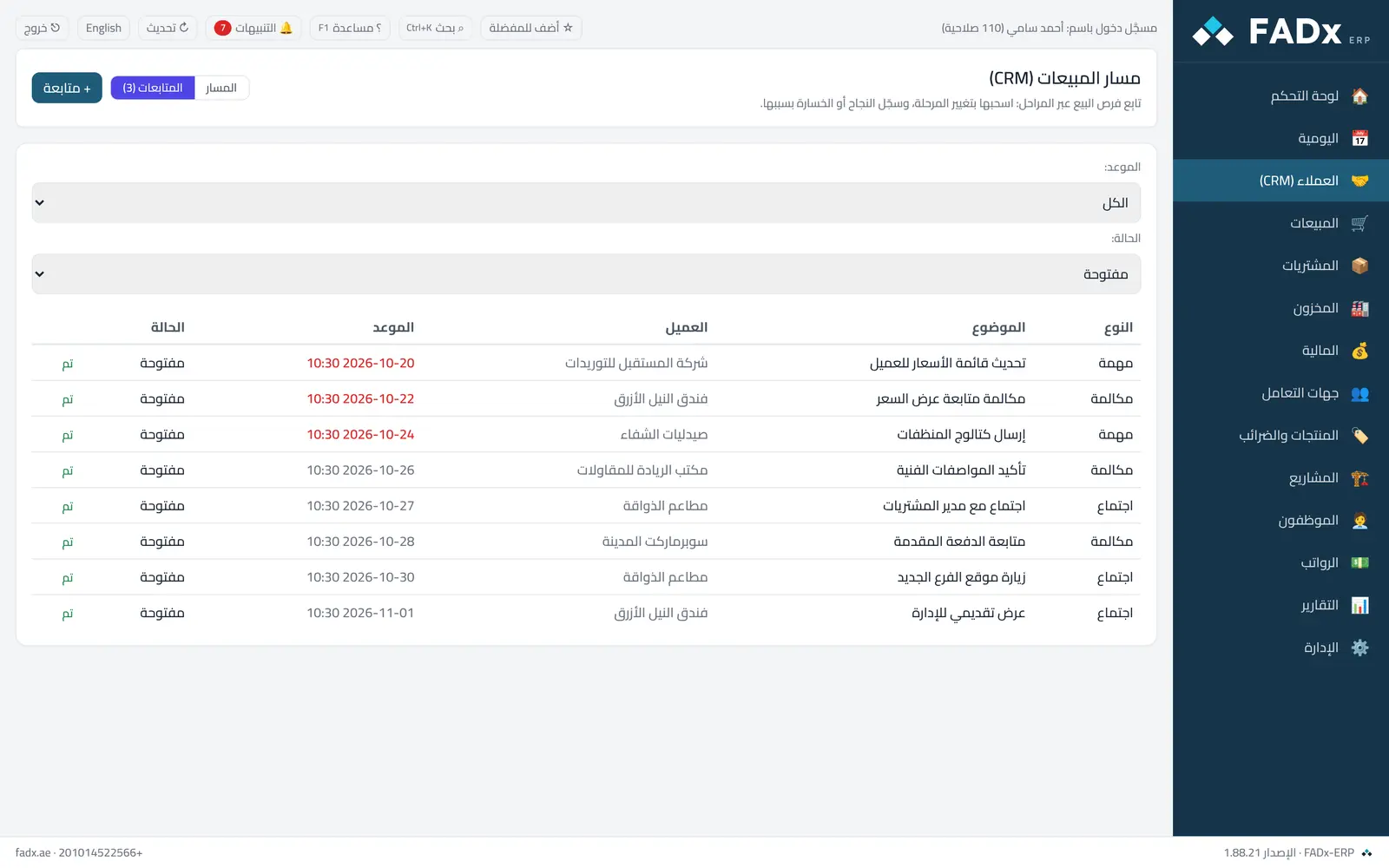
From the “Follow-ups” tab inside the customers screen you record your activities: a call, meeting, task or note — with a due date and status (open or done), tied to a customer or an opportunity. Overdue items show in a distinct colour, and a count badge alerts you inside the software.
Common workflows
- 1
Add a follow-up
Press “Follow-up”, pick the type, and write the subject, customer and due date.
- 2
Filter the list
By date (all · overdue · today · upcoming) and by status (open or done).
- 3
Close the follow-up
Press “Done” beside the activity when it is finished — it leaves the due list.
- 4
Reminders inside the software
Due follow-ups show in the count badge at the top of the screen — with no external email.
Messages you may see — and what to do
- The activity subject cannot be empty
Write a short subject for the activity.
- Invalid activity type
Pick a type from the list: call, meeting, task or note.
Question not covered here? Message us on WhatsApp and we will answer.
Ask on WhatsApp