
Chapter 22
Batches, expiry & serial numbers
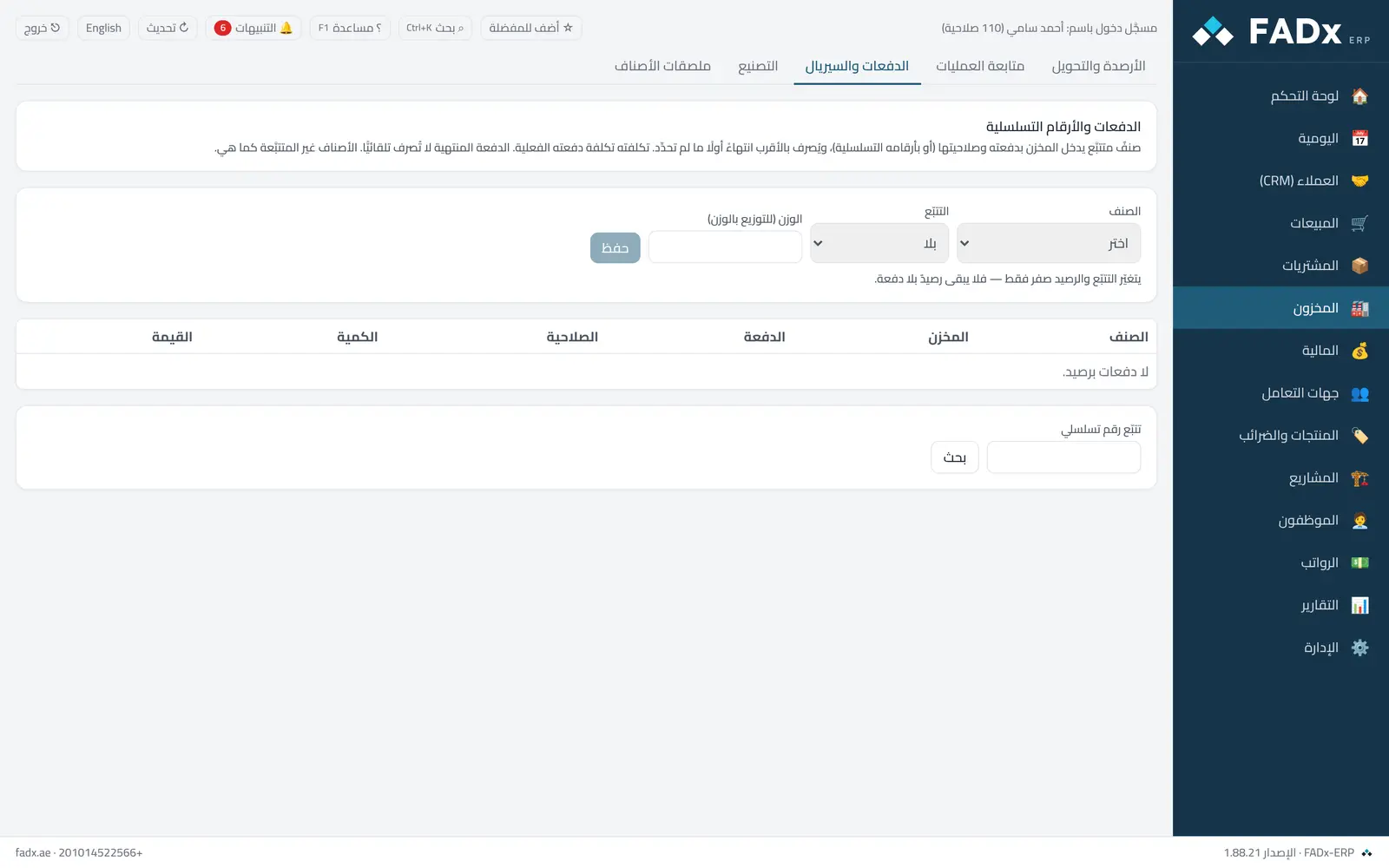
Choose which items are tracked by batch and expiry (medicines, food) or by serial number (devices under warranty), see each batch balance per warehouse at its cost, and trace the journey of any serial. Untracked items behave as before.
Common workflows
- 1
Turn tracking on
Pick the item and the tracking mode (batch-and-expiry or serial) and save — with a zero balance.
- 2
Receiving
On the purchase invoice press "Batches" next to the line and enter the batch number, expiry and quantity (or the serial numbers) before approving.
- 3
Selling
Nothing is needed for batches — nearest expiry is issued first. For a serial-tracked item press "Serials" and enter the numbers of the pieces sold.
Messages you may see — and what to do
- "Specify the batch number and expiry"
A tracked item cannot enter stock without a batch.
- "Change tracking only at zero balance"
No balance may remain that a batch cannot explain.
- "Expired"
An expired batch is never issued automatically; manually it needs the expired-batch permission and is logged.
- "Not in this warehouse"
The serial was already sold or sits in another warehouse — it cannot be sold twice.
Question not covered here? Message us on WhatsApp and we will answer.
Ask on WhatsApp