
What you get
Working hours, counted
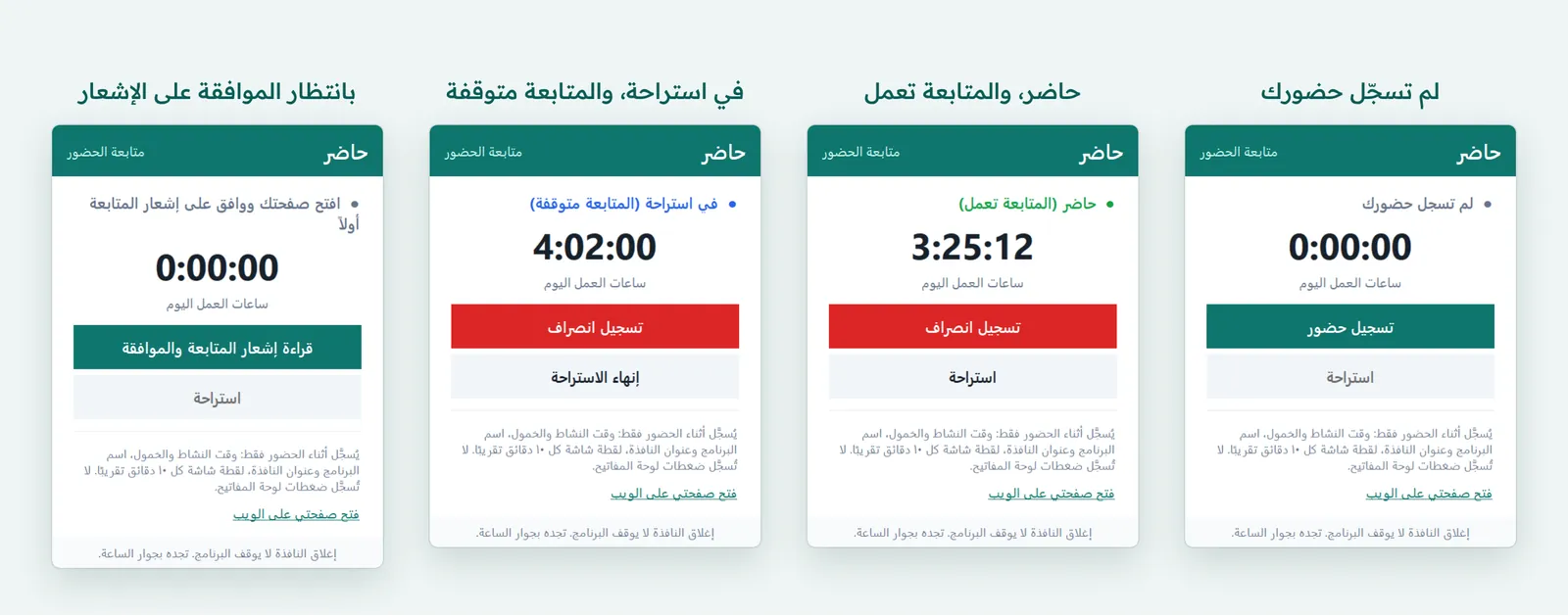
Check-in, check-out and breaks from the window above the clock, today’s hours on show, and active and idle time hour by hour in the employee’s day.
Only what you switch on
In Settings you choose what is recorded: active and idle time, app names and window titles, and screenshots at random times (about every 10 minutes by default).
Always in view
The app stays next to the clock and its icon colour shows the status: green at work, blue on a break, grey not checked in, red offline or notice not accepted.
Rules the server enforces
Activity is stored only inside a check-in, outside breaks and after the employee accepts the monitoring notice, and a screenshot is accepted only while they are checked in. No screen or app can change that.
“My data” for the employee
Employees see their days, activity and screenshots exactly as an admin does, and who viewed their screen in the last 90 days.
Retention you set
Screenshots and window titles are deleted after the period you choose (30 days by default), and every view of a screenshot is kept in the “Access log”.
How it works
Full walkthrough in the guide- 1 In “Settings”, choose what the desktop app records and how long screenshots are kept.
- 2 The employee downloads the app from their page on the Hader website and signs in with their email or company account.
- 3 They read and accept the monitoring notice; until then, no activity is stored.
- 4 They check in, take breaks and check out from the window above the clock.
- 5 You follow average activity on the “Live” page, and open an employee’s day for activity by the hour and the most used programs.
Common questions
Does the app record keystrokes?
No, never. What is recorded is limited to what the company turns on, active and idle time, app names, window titles and screenshots, and only while checked in.
Do employees know what is recorded about them?
Yes. They accept a monitoring notice that spells out exactly what the company records before anything is kept, the app window lists what is recorded, and “My data” shows everything recorded about them.
What if the internet drops?
Activity is kept on the employee’s computer and sent when the connection returns, and nothing counts twice.
How are working hours added up for the month?
“Attendance → Month summary” shows days present, absent and on leave, plus late and overtime minutes, for everyone, with an Excel export. Hourly staff are paid recorded hours × their rate.
More in FADx Hader
Try Hader at your company
We activate a free trial account for your company and send you the sign-in link — your staff check in from a browser, a phone or a fingerprint terminal.