
What you get
An order cycle in five statuses
An order moves through “Draft” → “Approved” → “Waiting” → “In progress” → “Completed”. Until you click “Approve” it stays a draft you can edit freely.
Stages per item, each with its supplier
Each item gets its stages in order — printing, binding, finishing — and each stage its supplier. A stage goes to “In progress” when it is sent out to the supplier, and to “Completed” when it is back and finished.
A status nobody types in
Once every stage of every item is completed, the order turns “Completed” by itself. Only logical moves are allowed, so the record keeps telling what really happened.
Late orders in red
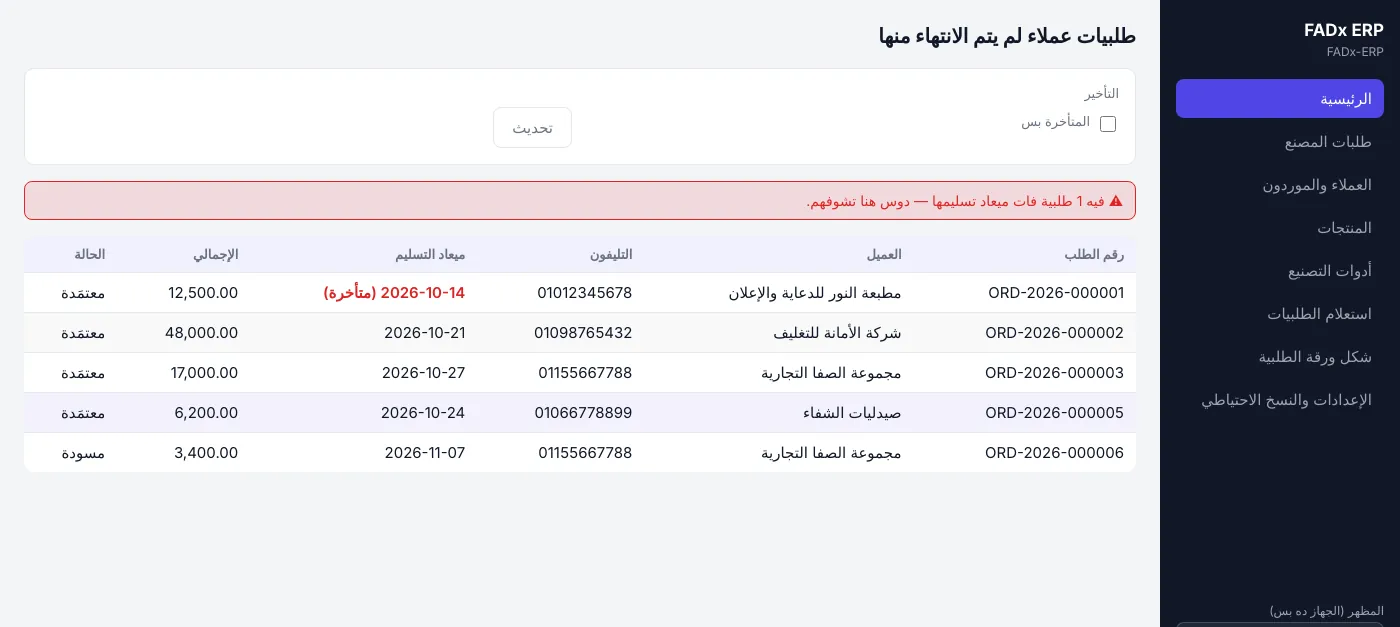
An order past its delivery date shows that date in red with “(late)” beside it, and an alert above the table gives the count. Tick “Late only” to see just those orders.
Look up any order
The home screen lists only what is not yet delivered; “Order lookup” searches every order by customer, status, date or order number.
The order sheet as a PDF
Click “Print order sheet” inside the order for a PDF with its items and stages, laid out in your factory’s style. The sheet travels with the job, and you print it for the customer or send it to them on WhatsApp.
How it works
Full walkthrough in the guide- 1 In “Factory orders”, choose the “Customer”, set the “Delivery date” and “Agreed total”, then click “Create order”.
- 2 Open the order, add its items by product and quantity, then click “Approve”.
- 3 Add each item’s stages: choose the “Stage type” and “Supplier”, set its place in the sequence, then click “Add stage”.
- 4 Move each stage from “Waiting” to “In progress” to “Completed” with its status button.
- 5 Print the order sheet to travel with the job, and keep an eye on late orders from “Home” until delivery.
Common questions
Can I see late orders without checking them one by one?
Yes, as long as you set a delivery date when you create the order — without one the program cannot tell it is late. Any order past its date shows that date in red on “Home”, with an alert above the table giving the count.
Why isn’t an older order on the home screen?
Because “Home” only lists orders not yet delivered. Find any order in “Order lookup” by customer, status, date or order number.
What happens if an order is called off?
Click “Cancel” and give the reason. The program keeps the order on record instead of deleting it, so the figures stay right.
Does it work without internet?
Yes. FADx Print runs on a Windows machine and all your data stays on it, not on an outside server. If the factory has an internal network, several machines can work on the same data — technical support sets it up.
More in FADx Print
Try FADx Print in your factory
Request the installer — we send it and help you set it up, and from the first order you know its cost and profit.