
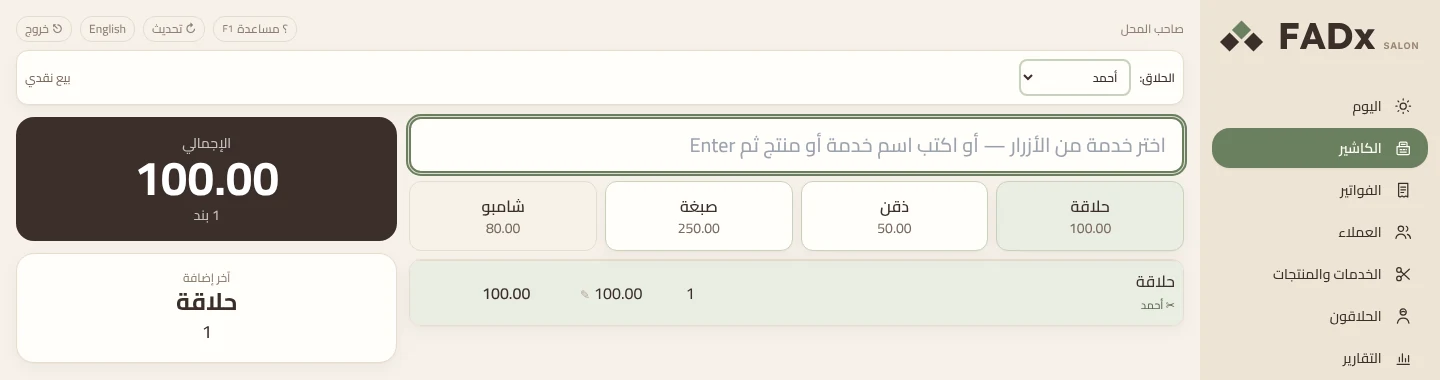
What you get
Services as buttons, the barber chosen once
Pick the barber from the “Barber” list at the start of the sale and every service after that is recorded under him. For products, type the name in the big box and press Enter.
F12 to pay, split if needed
Enter on an empty field means cash for the full amount. For card or transfer, type the amount in its field — one bill can be split across methods. The client’s change shows in large type.
Credit sales to a known client
Pick the client with F6, then press the orange “on account” button in the payment window; the rest is recorded as debt and shows in their balance. No client, no credit sale.
A special price per client
Click a line’s price and type the new one, and it is saved for that client after payment. On their next visit you see “this client’s last price: 80.00” with an “apply it” button — the choice is yours each time.
Mistakes are voided, never deleted
A wrong invoice is reversed with “Wrong — void this invoice” and a reason: the amount leaves the till and the barber’s commission is cancelled. Voiding covers today’s invoices you issued yourself; product returns go through F7.
A key for each job
F2 for quantity, F3 for a percentage discount (with the discount permission), F10 to change a line’s barber, and F8 to open the cash drawer if one is connected.
How it works
Full walkthrough in the guide- 1 Pick the barber from the “Barber” list at the top.
- 2 Press the service button, or type a product name in the big box and press Enter.
- 3 Pick the client with F6 if you like; without one, it is recorded as a “cash sale”.
- 4 Press F12 to take payment: Enter on an empty field for cash in full, or type each method’s amount in its own field.
- 5 Press Enter for a new sale — the receipt prints or goes to the client’s WhatsApp.
Common questions
Do I have to open the drawer or start a session before selling?
No — you start selling straight away. If you want to count and close the drawer daily with opening and closing amounts, switch on “Require opening the drawer before selling each day” in the operating settings; it is off by default.
Can a client pay part cash, part card?
Yes. In the payment window (F12) you type each method’s amount in its own field, and the bill can be split across methods.
Does the cashier work without internet?
Yes. FADx Salon runs on a Windows machine in the shop and on your local network. Sales and reports are on your machine, and your data stays with you.
Does it handle appointments?
No. FADx Salon is a cashier and management system for a walk-in shop, with no appointment system. If your business runs on pre-booked appointments it is not the right fit, and we say so before you buy.