
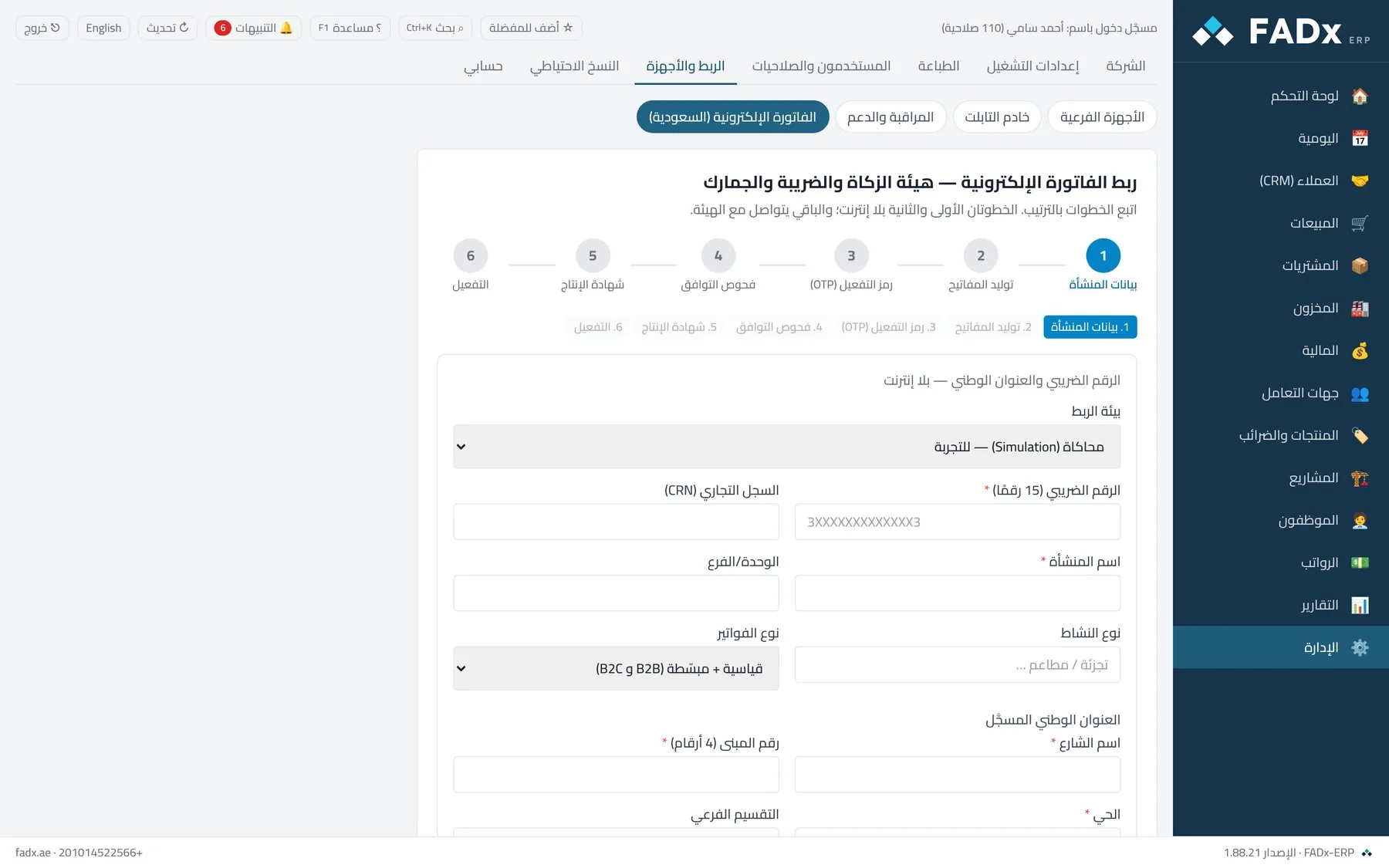
Linking
Six steps, in order
The first two steps are offline; the rest talk to ZATCA.
- 1 offline
Establishment details
The 15-digit VAT number, commercial registration, establishment name, national address, activity and invoice types — offline.
- 2 offline
Generate the keys
Signing keys are created locally on your machine and never leave it.
- 3
Activation code (OTP)
Take the code from ZATCA’s Fatoora portal and enter it in the wizard.
- 4
Compliance checks
The software sends test invoices and ZATCA returns a result for each check.
- 5
Production certificate
Once the checks pass, ZATCA issues the production certificate and the software stores it.
- 6
Activation
The link is ready, and invoices start going out according to the “sending behaviour” setting.
What it covers
Tax compliance without stopping the sale
Standard and simplified invoices
Standard (B2B) and simplified (B2C) — both supported, and the software tells them apart by transaction type.
Reporting on a background queue
Invoices are reported in the background with an immediate wake on posting — the cashier never stops waiting for ZATCA. This is a detail you feel in a busy shop.
A simulation environment first
You test the full link in a Simulation environment before touching production, so no problem is discovered on a real invoice.
Credit and debit notes
Notes (381 / 383) linked to the original invoice number with the reason for the note.
Tax category on the item
Set once on the item, then each category is sent in its own tax section matching UBL requirements.
Signing on your machine
Signing keys are generated and kept locally. Your data does not pass through any intermediate server of ours.
Tax categories
Four categories, set once on the item
You pick ZATCA’s category when creating or editing a tax, then each category is sent in its own tax section matching UBL requirements. For zero-rated and exempt, the software asks for the exemption reason before saving, because ZATCA requires it.
- Standard
- The usual rate on taxable items.
- Zero-rated
- The software asks for the exemption reason before saving — ZATCA requires it.
- Exempt
- Likewise with a mandatory exemption reason.
- Out of scope
- For what falls outside the scope of tax.
Common questions
What establishments ask
- Is the software approved by ZATCA?
- The software links your establishment to ZATCA through a six-step wizard including the compliance checks and the production certificate. Approval is issued to the establishment once those checks pass on its own setup — and we walk you through them until they do.
- Do I need internet all the time?
- Selling itself does not — the software runs on your local network. Reporting needs a connection and happens on a background queue, so it never blocks the cashier.
- I have branches in Saudi Arabia and elsewhere
- The software is multi-branch and multi-currency by design. E-invoicing is enabled for the Saudi establishment, and other branches carry on as they are.
- Should I switch on automatic sending right away?
- No. Automatic sending is off by default — switch it on after the link is complete and tested. That order is deliberate.
- What if a standard invoice is missing data?
- The software refuses and tells you what is missing — “a standard invoice needs a national address for the buyer”, for instance — rather than sending something incomplete to be rejected by ZATCA.
Try it free on your own data
Request a free trial and we will set the system up on your own business, with your own data — not a demo dataset.